> For the complete documentation index, see [llms.txt](https://docs.zipy.ai/llms.txt). Markdown versions of documentation pages are available by appending `.md` to page URLs; this page is available as [Markdown](https://docs.zipy.ai/product-features/slack-integration.md).
# Slack Integration
Get notified about errors and sessions captured by Zipy directly in your Slack channels.
#### How to do Slack Integration in Zipy?
Zipy's Slack integration lets you receive error alerts, session digests, and AI summaries directly in your Slack workspace. You can connect Zipy to multiple Slack channels — including both public and private channels — and configure which notifications each channel receives.
#### Where to Find This
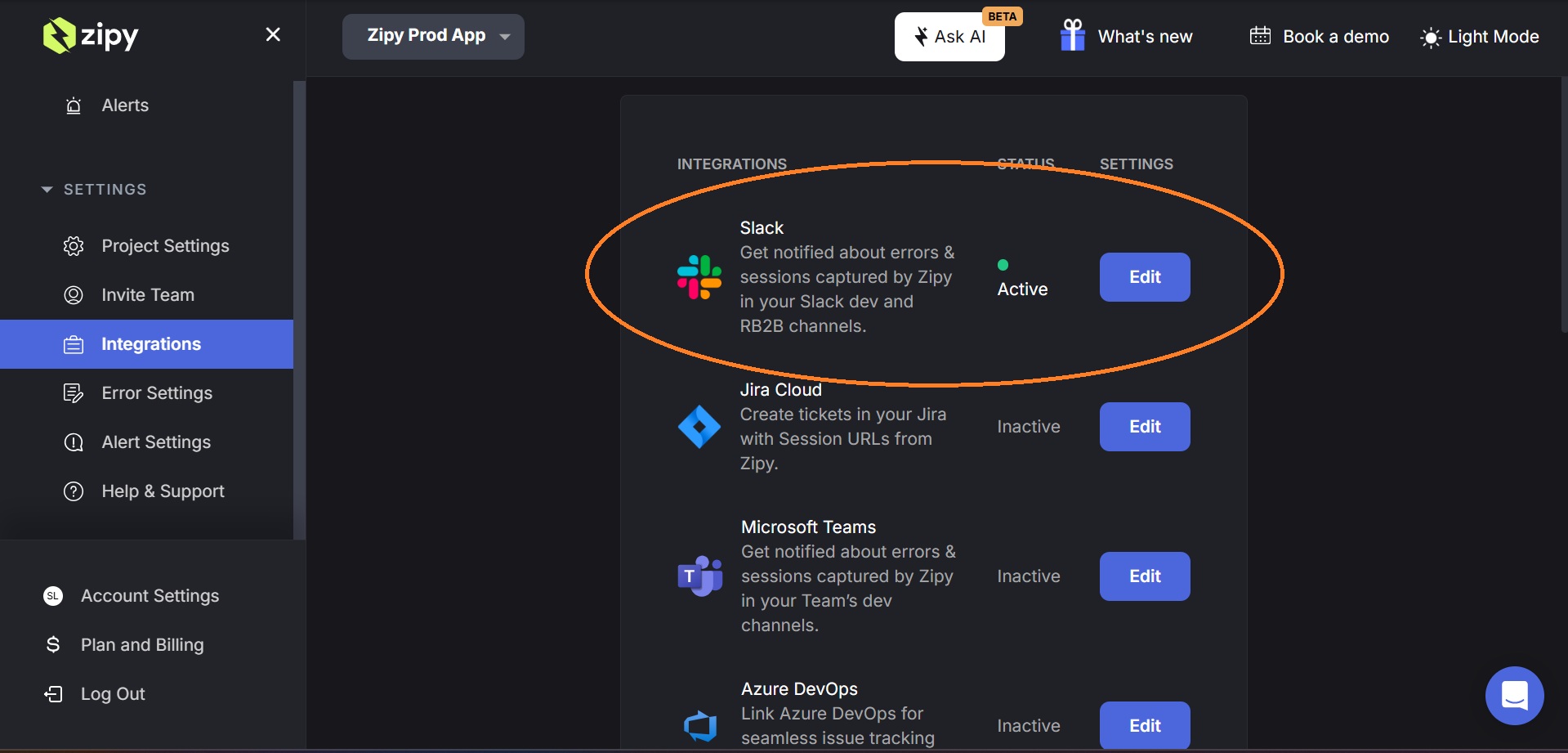
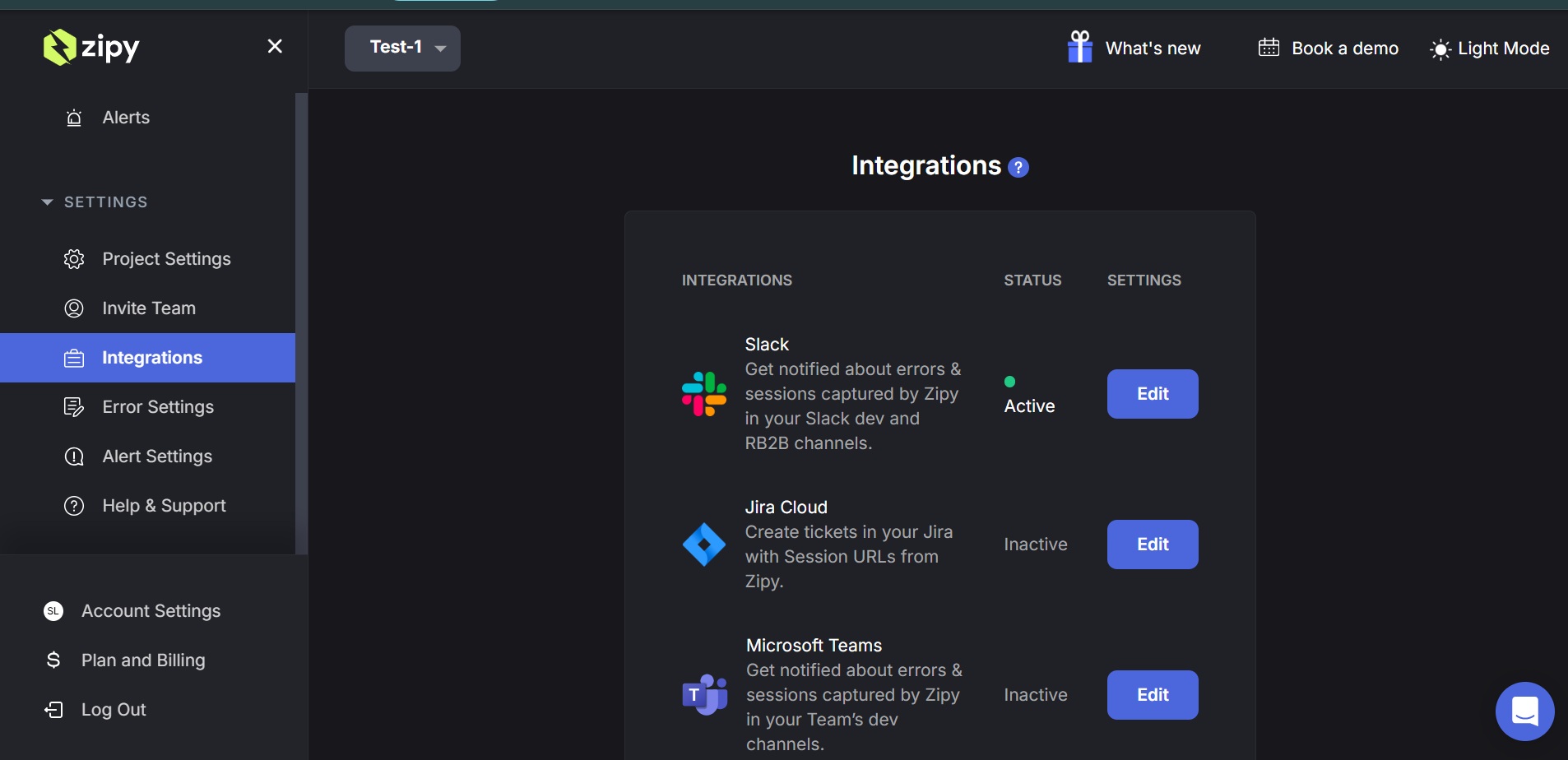
Go to your Zipy Dashboard → Settings → Integrations. Click the Edit button next to Slack to open the Slack Integration pane
#### Part 1: Connecting Zipy to a Public Slack Channel
Follow the steps below to connect Zipy to a public Slack channel and start receiving error alerts and session notifications.
**Step 1: Open the Slack Integration Panel**\
Go to Settings → Integrations. Click Edit next to Slack. The Slack Integration panel opens on the right side of the screen.
**Step 2: Click 'Enable Zipy Alerts on Slack Channels'**\
Click the Enable Zipy Alerts on Slack Channels button. This opens the Slack Integration / Add New flow.
**Step 3: Authorise Zipy in Your Slack Workspace**\
Click the Choose Channel button. You will be redirected to Slack's OAuth authorisation page.
* Select your Slack Workspace from the dropdown at the top of the page.
* In the Channel for webhook dropdown, search for and select the public channel you want to connect (e.g. #new-channel, #zipy-alerts).
* Review the permissions Zipy is requesting — it will be able to view content and info about you and your channels.
* Click Allow to grant Zipy access.
**Step 4: Configure Notification Settings**\
After authorisation, you are returned to the Slack Integration / Add New screen. The Slack Workspace and Slack Channel fields are now populated. Configure which notifications you want to receive on this channel:
* Weekly Summary: Report of all errors generated in the week.
* Daily Summary: Report of all errors generated in a day.
* New Error Digest: Notification each time a new error is detected.
**Step 5: Save the Integration**\
Click Save Slack Integration. The channel is added to the Added Integrations (Slack) section of the panel.
**Step 6: Send a Test Message**\
Click Send Test Message on the integration card to verify the connection. You should see a 'Message sent to the Slack Channel' confirmation in Zipy, and a test message from Zipy will appear in your Slack channel.
#### Part 2: Connecting Zipy to a Private Slack Channel
Connecting Zipy to a private Slack channel requires one extra step — you need to manually invite the Zipy app into the private channel before saving the integration.
**Step 1: Open the Slack Integration Panel**\
Go to Settings → Integrations. Click Edit next to Slack. Click Enable Zipy Alerts on Slack Channels.
**Step 2: Authorise Zipy and Select the Private Channel**\
Click Choose Channel. On the Slack OAuth page, select your workspace and search for the private channel. Private channels are shown with a lock icon (🔒). Select your private channel and click Allow.
**Step 3: Invite the Zipy App to the Private Channel**\
Before saving the integration in Zipy, go to your Slack workspace and open the private channel. Type the following command in the message box and press Enter:
| /invite @Zipy |
| ------------- |
**Step 4: Configure Notification Settings and Save**\
Return to Zipy. The Slack Workspace and Slack Channel fields will be populated. Select your notification preferences — Weekly Summary, Daily Summary, New Error Digest — then click Save Slack Integration.
**Step 5: Verify with a Test Message**\
Click Send Test Message on the integration card. A test message ('Hola! This is a test message from Zipy.') will appear in your private Slack channel confirming the connection is working.