> For the complete documentation index, see [llms.txt](https://docs.zipy.ai/llms.txt). Markdown versions of documentation pages are available by appending `.md` to page URLs; this page is available as [Markdown](https://docs.zipy.ai/product-features/repro-steps.md).
# Repro Steps
AI-generated steps to reproduce any error — so you can fix it faster.
#### How to reproduce a production bug using Repro Steps?
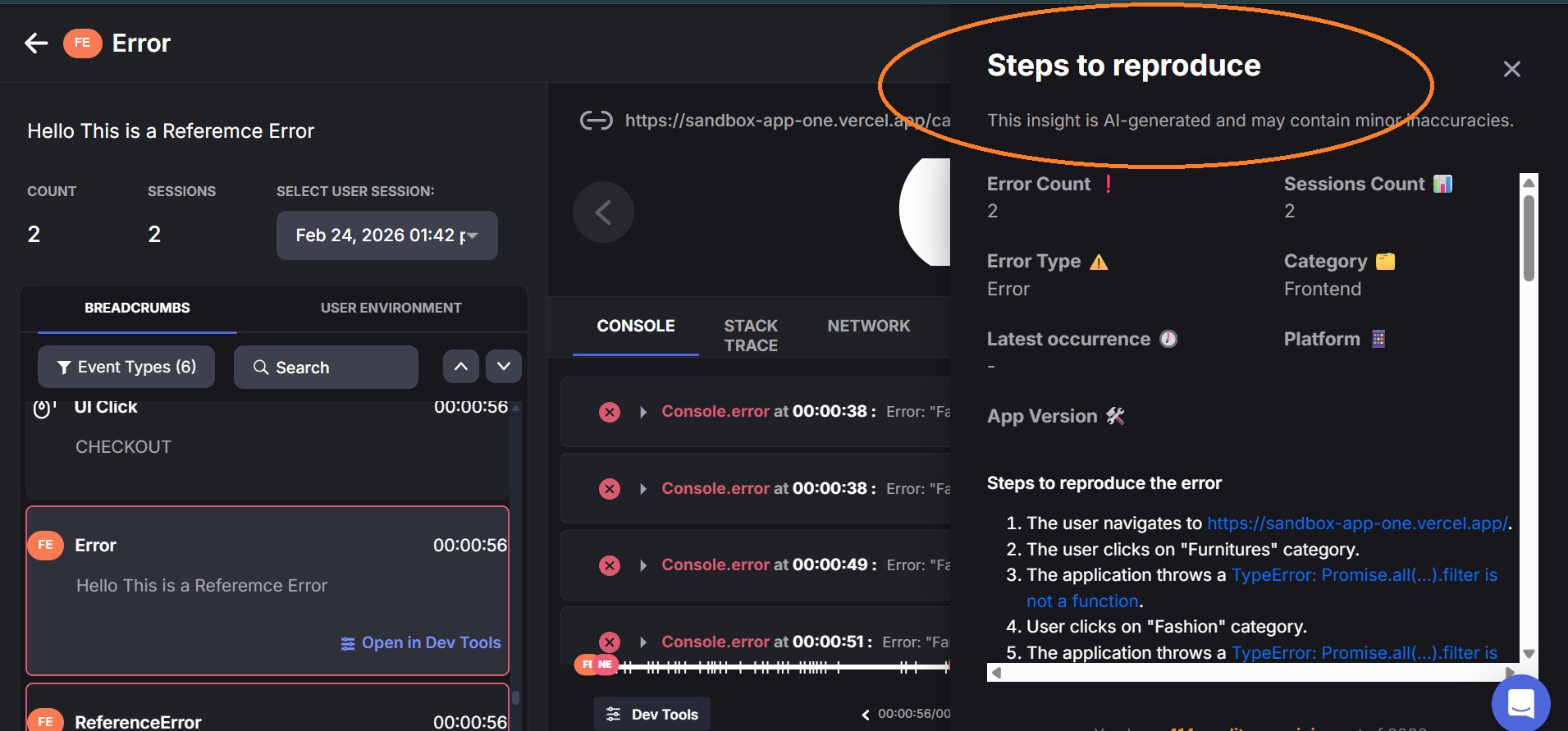
Repro Steps is an AI-powered feature in Zipy that automatically generates the exact steps needed to reproduce any error recorded in a session. When you are investigating an error, instead of manually piecing together what the user did from breadcrumbs and console logs, Repro Steps does it for you instantly.
The AI analyzes the full session context - user actions, navigation events, console errors, network requests, and stack traces - and produces a structured report with reproduction steps, fix suggestions, and debugging guidance, all in one place.
#### **Example Summary**
### How to Access Repro Steps
1. Go to your Zipy Dashboard and navigate to Errors.
2. Click on any error to open the error detail view.
3. Select a user session from the session list on the left to open the Session Replay.
4. In the Session Replay view, click the REPRO STEPS button in the bottom control bar (bottom right).
5. The Steps to Reproduce modal opens with a full AI-generated breakdown of the error.
6. Use the Copy steps to reproduce button at the bottom of the modal to copy the full report to clipboard.
### Understanding the Repro Steps Modal
The Steps to Reproduce modal is organized into distinct sections. Each section gives you a different layer of information about the error and how to address it.
#### Error Metadata
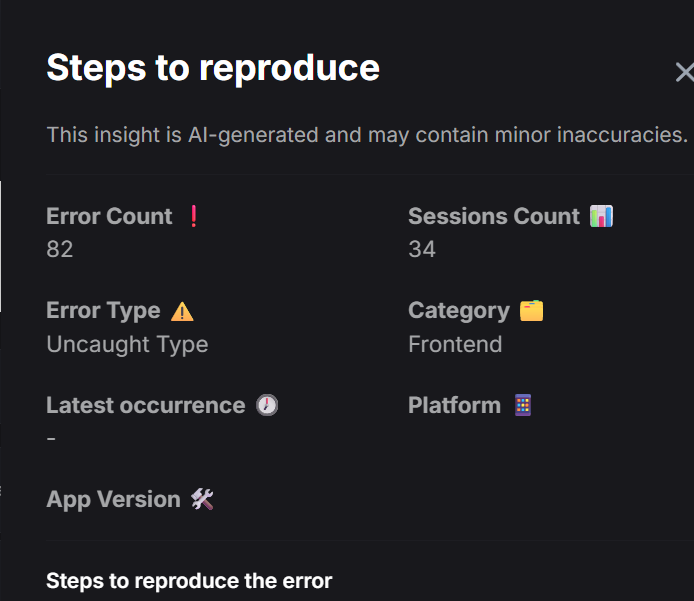
At the top of the modal, Zipy displays key metadata about the error so you have full context before reading the reproduction steps.
The metadata fields include:
* **Error Count**: Total number of times this error has occurred.
* **Sessions Count**: Number of unique sessions in which this error appeared.
* **Error Type**: The type of error (e.g., Error, TypeError, ReferenceError).
* **Category**: Whether the error is a Frontend or Network error.
* **Latest Occurrence**: Timestamp of the most recent occurrence of this error.
* **Platform**: The platform or device type on which the error occurred.
* **App Version**: The version of your application that was running when the error occurred.
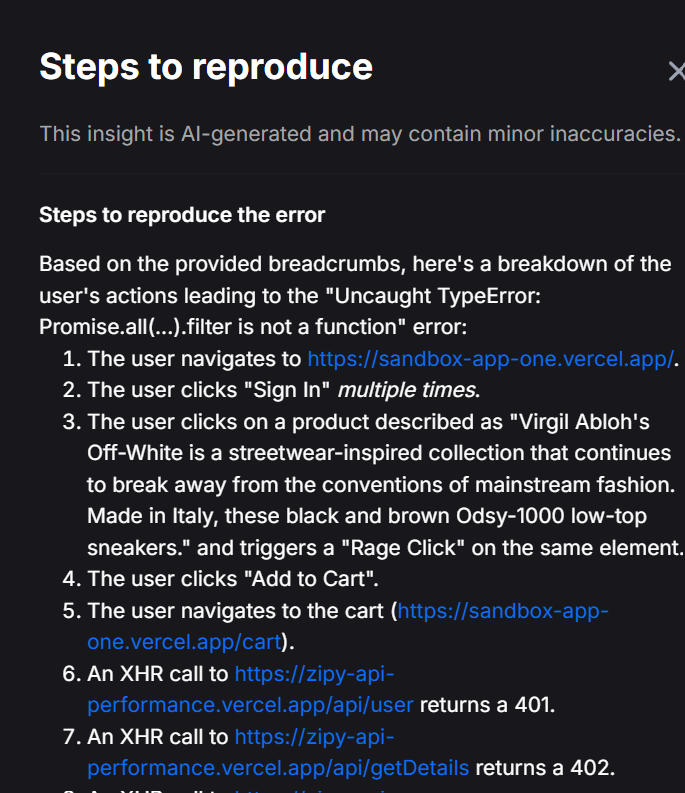
#### Steps to Reproduce the Error
This section provides a numbered, chronological sequence of actions the user took that led to the error. It is generated by the AI from the session's breadcrumb and event data.
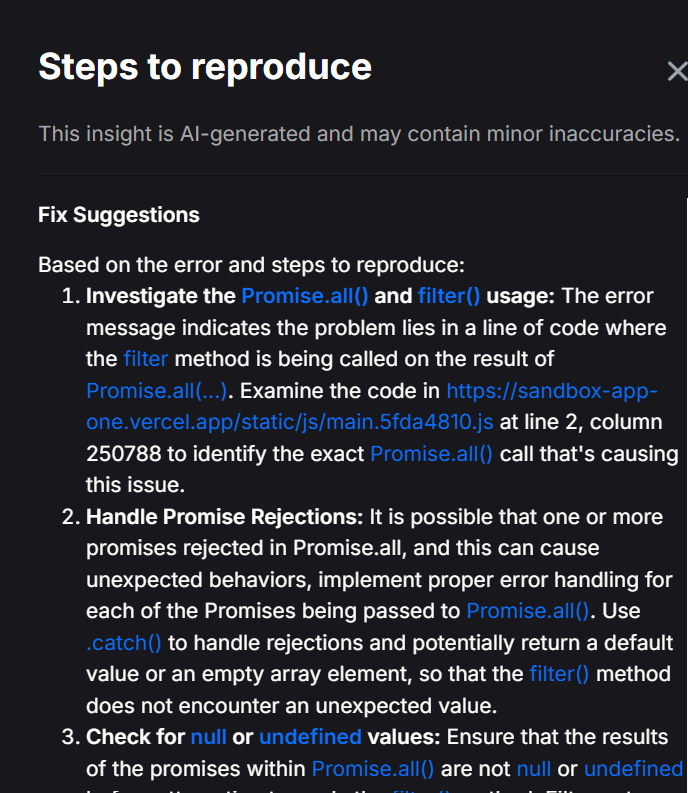
#### Fix Suggestions
The Fix Suggestions section provides an AI-generated analysis of the probable root causes of the error, along with concrete fixes for each. Each potential cause is numbered and accompanied by a sub-item describing the recommended fix.
#### Debugging Steps
Beyond fix suggestions, the modal also includes targeted Debugging Steps — a practical checklist of techniques your developer can follow to isolate and confirm the root cause in your codebase.
#### Closing Summary
At the end of the modal, the AI provides a closing paragraph that summarises the most likely root cause and how the debugging steps connect to it. This gives you a concise takeaway before you jump into your code.
### Copy Steps to Reproduce
At the bottom of the Repro Steps modal, there is a Copy steps to reproduce button. Clicking it copies the entire content of the modal — including the reproduction steps, fix suggestions, and debugging steps — to your clipboard as plain text.