> For the complete documentation index, see [llms.txt](https://docs.zipy.ai/llms.txt). Markdown versions of documentation pages are available by appending `.md` to page URLs; this page is available as [Markdown](https://docs.zipy.ai/product-features/microsoft-teams-integration.md).
# Microsoft Teams Integration
Get notified about errors and sessions captured by Zipy directly in your Microsoft Teams channels.
Zipy's Microsoft Teams integration lets you receive error alerts and session notifications directly in your Teams channels. It works via an incoming webhook - a URL that Zipy uses to post messages to a specific Teams channel. You configure the webhook in Microsoft Teams and paste the URL into Zipy to complete the connection.
#### **Where to Find This**
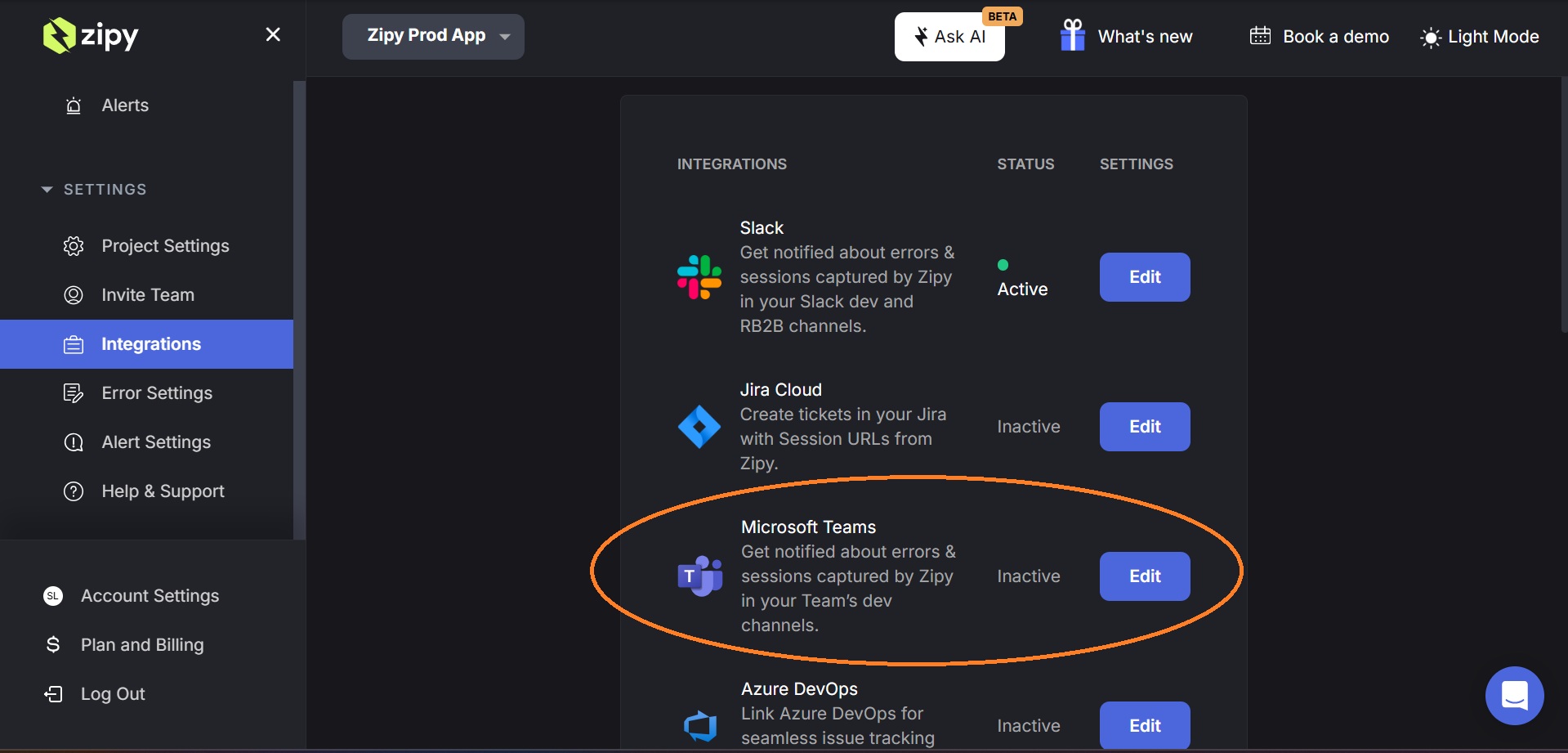
Go to your Zipy Dashboard → Settings → Integrations. Click the Edit button next to Microsoft Teams to open the setup panel.
### How It Works
The Microsoft Teams integration uses an incoming webhook. A webhook is a unique URL generated by Teams for a specific channel. When Zipy has an alert to send, it posts a message to that URL and the message appears in your Teams channel automatically.
#### The setup has two parts:
* **In Microsoft Teams:** Create an incoming webhook connector for the channel where you want to receive Zipy alerts.
* **In Zipy:** Paste the webhook URL and give the integration a name (Digest Name) to complete the connection.
#### Setting Up the Microsoft Teams Integration
**Step 1: Go to the Teams Channel**\
Open Microsoft Teams and navigate to the channel where you want to receive Zipy error alerts and session notifications.
**Step 2: Open Channel Settings**\
In the top-right corner of the channel, click the ⋯ (more options) menu dropdown and select Manage channel.
**Step 3: Open Connectors**\
In the Manage channel panel, select Connectors. This opens the list of available connectors for your Teams channel.
**Step 4: Add the Incoming Webhook Connector**\
In the Connectors search bar, search for Incoming Webhook and click Add. If it is already installed, click Configure instead.
**Step 5: Configure the Webhook**\
Click Configure on the Incoming Webhook connector. You will be asked to provide:
* **Name:** We recommend naming it Zipy Alerts so it is easy to identify in Teams.
* **Image:** Optionally upload the Zipy logo. A download link is provided in the Zipy setup panel for your convenience.
Click Create (or Save) to generate the webhook.
**Step 6: Copy the Webhook URL**\
After creating the webhook, Microsoft Teams will display a unique Webhook URL. Copy this URL — you will need to paste it into Zipy in the next step. Do not close the Teams window until you have copied the URL, as it may not be shown again.
**Step 7: Complete the Setup in Zipy**\
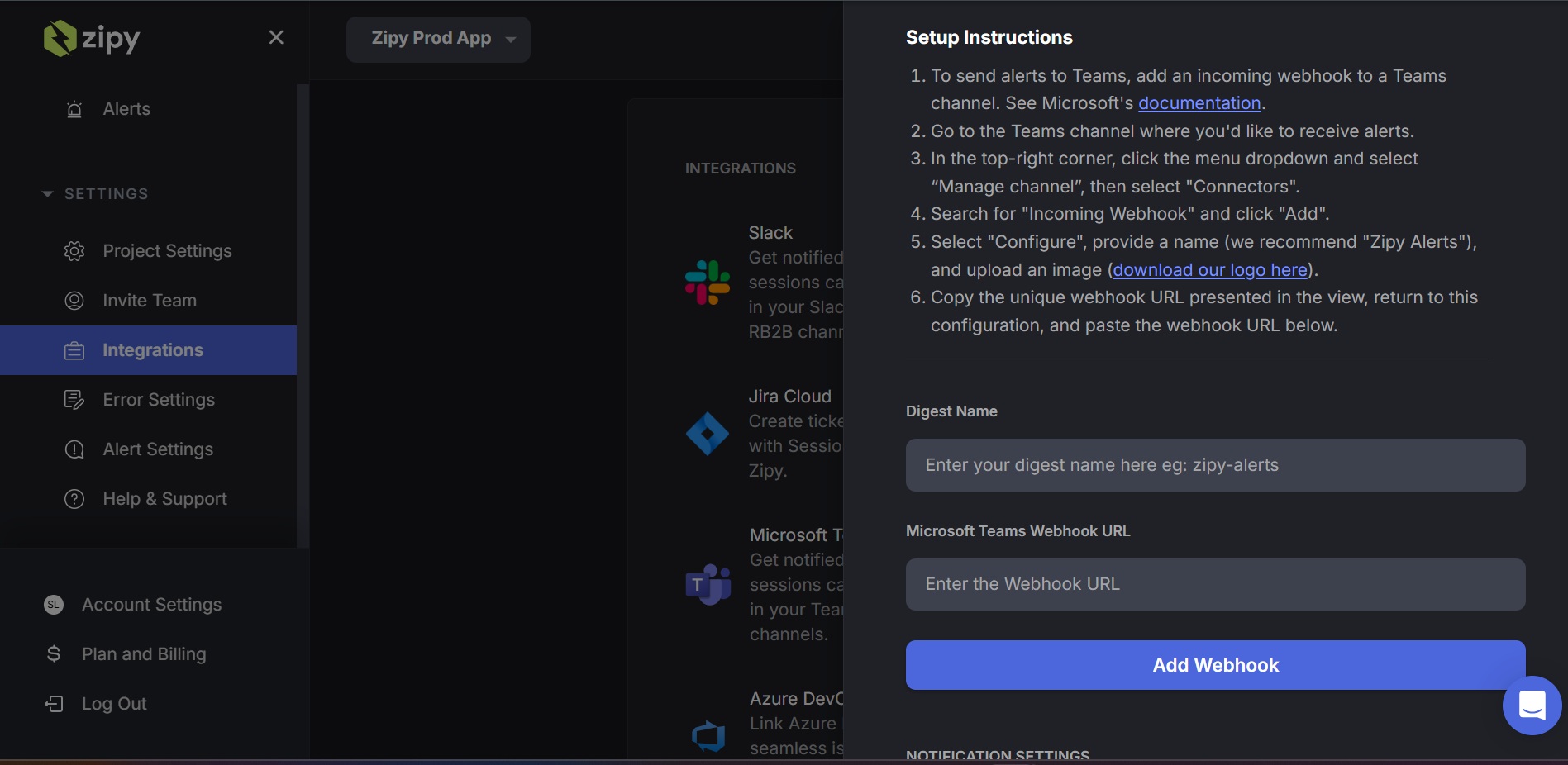
Return to Zipy. In the Microsoft Teams Integration / Add New panel, fill in the following fields:
* **Digest Name:** Enter a name for this integration (e.g. zipy-alerts, teams-dev-channel). This is used to identify the integration in Zipy.
* **Microsoft Teams Webhook URL:** Paste the webhook URL you copied from Teams.
Click Save Teams Integration to complete the setup.