# Welcome to Zipy ai
Welcome to a one stop platform which solves for customer experience.
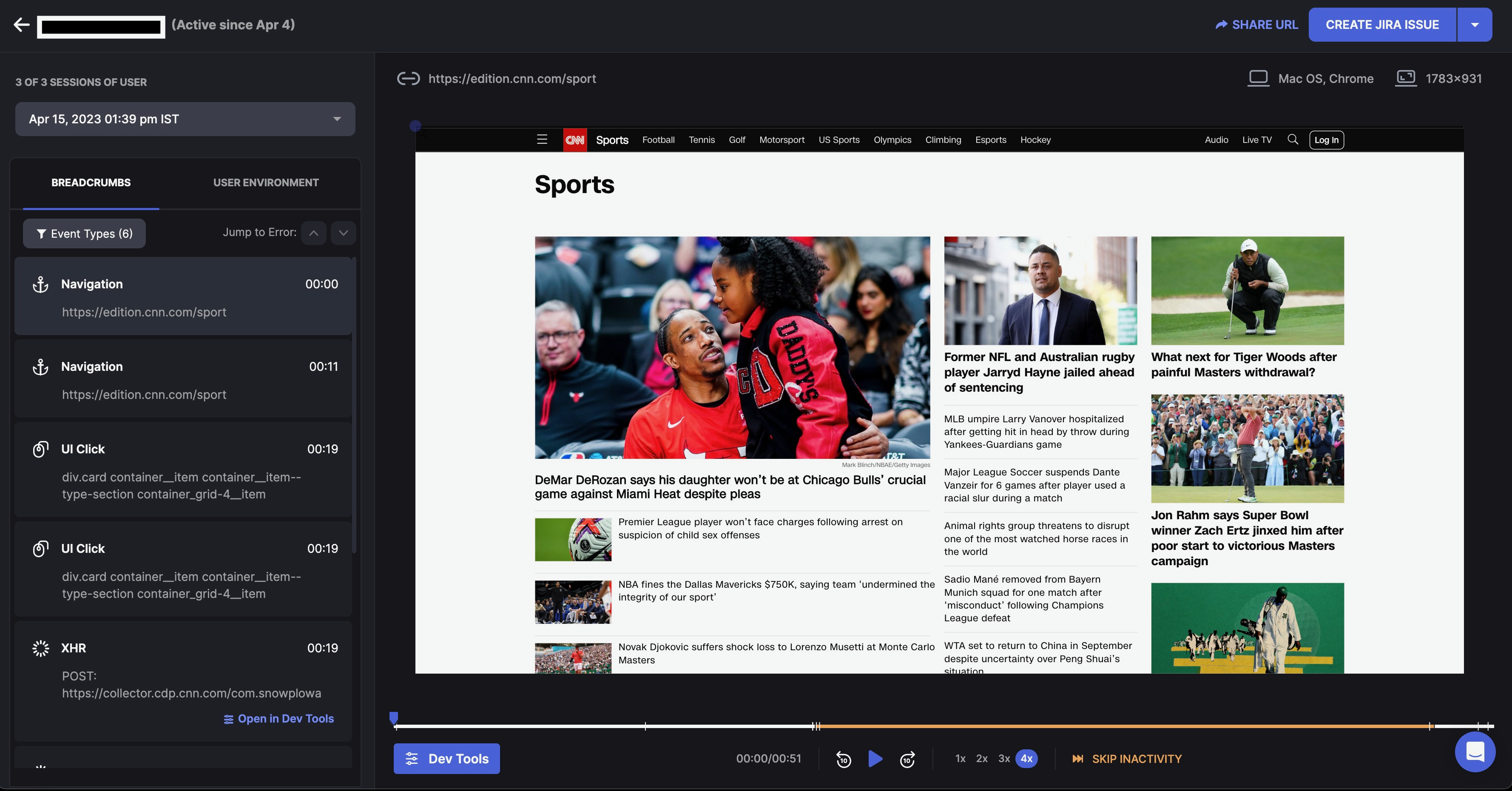
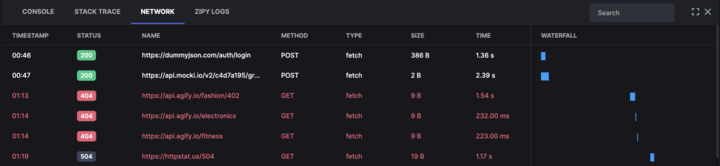
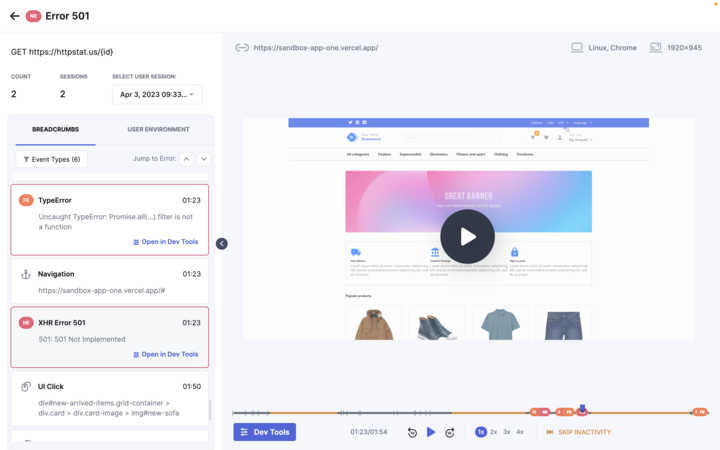
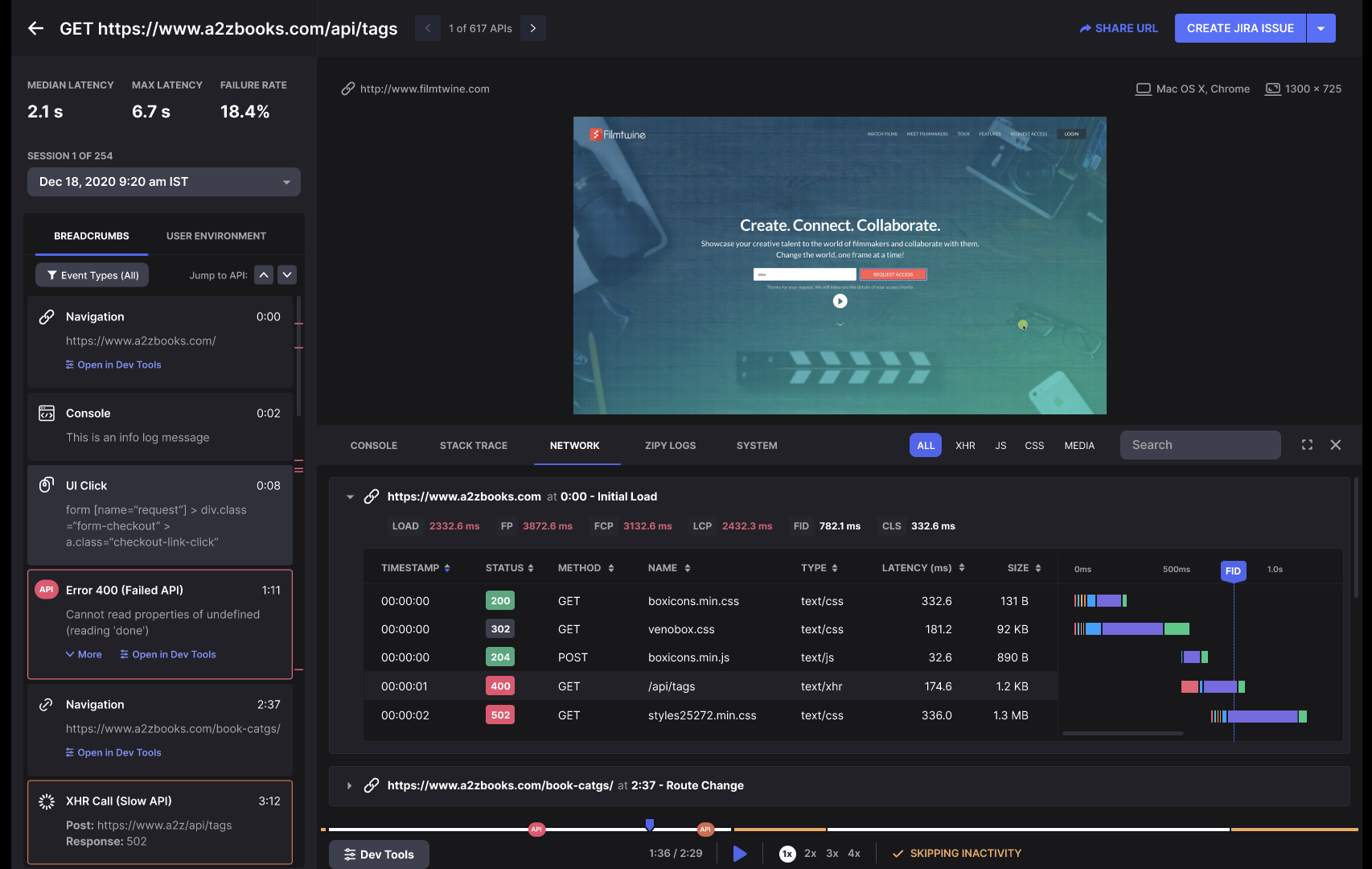
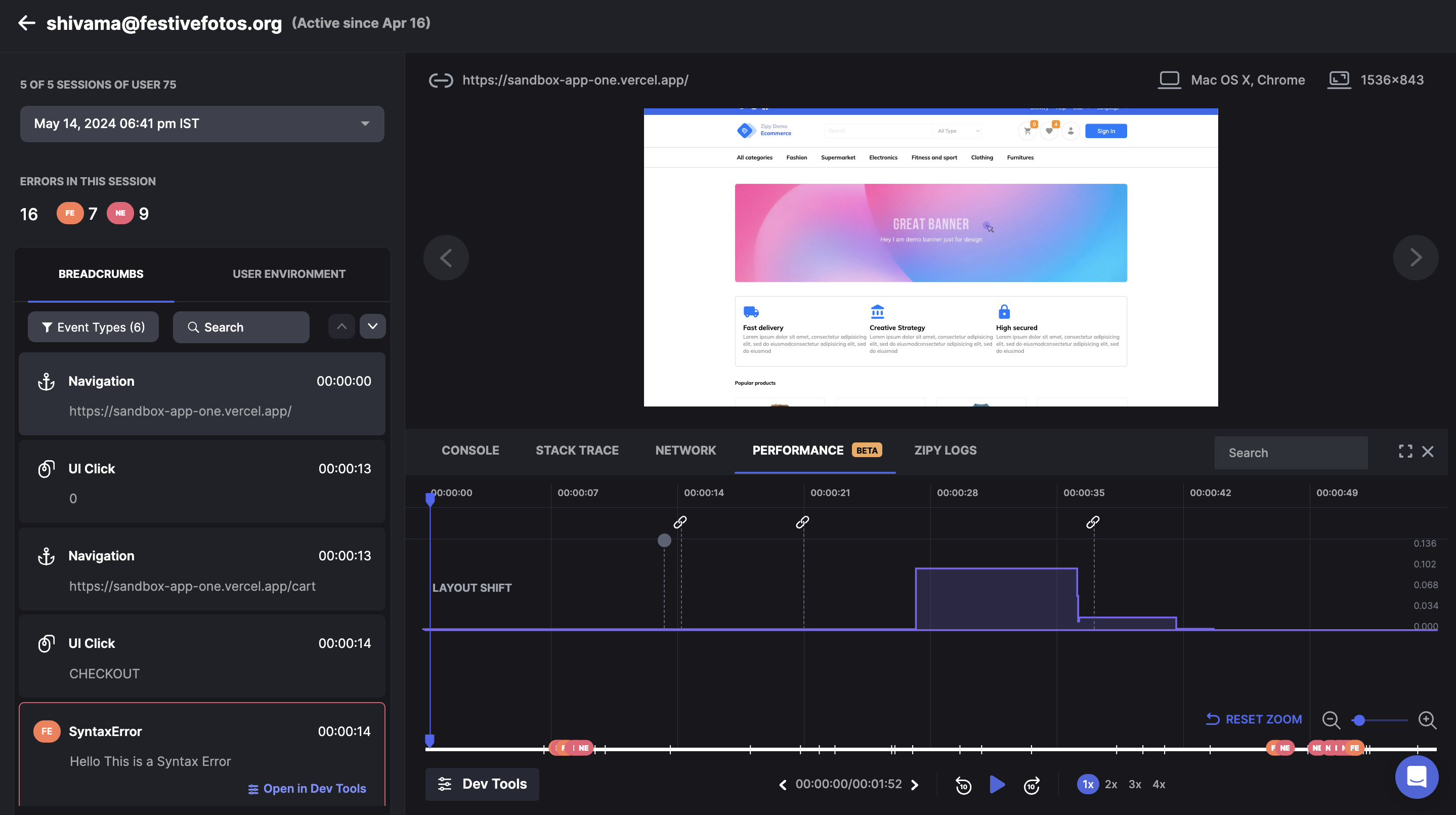
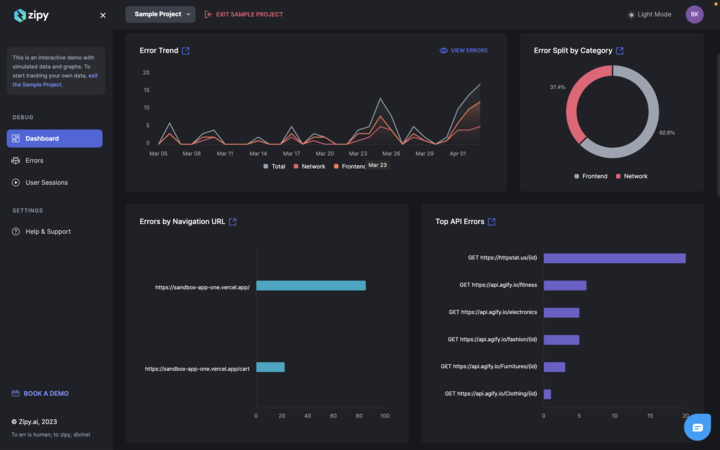
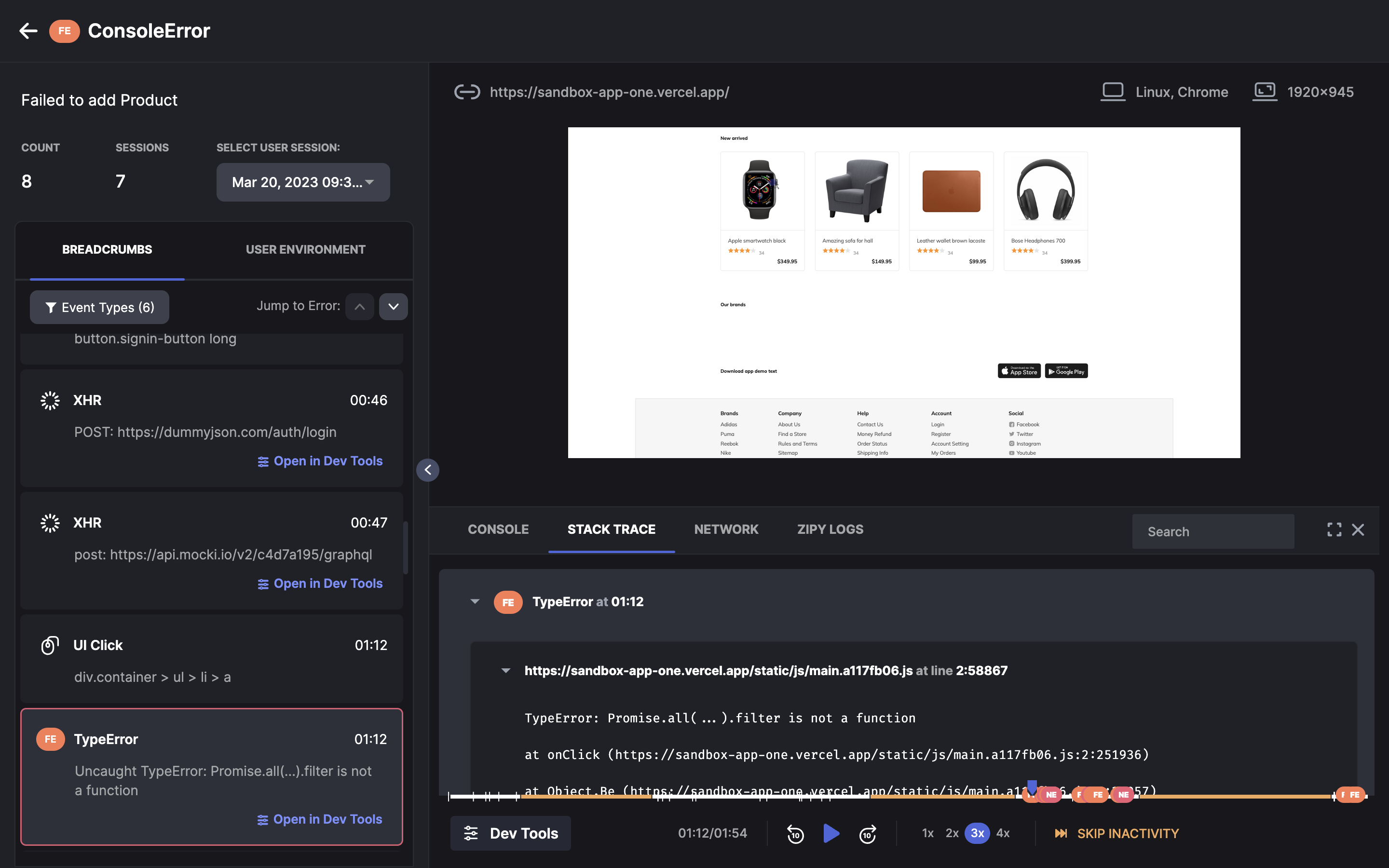
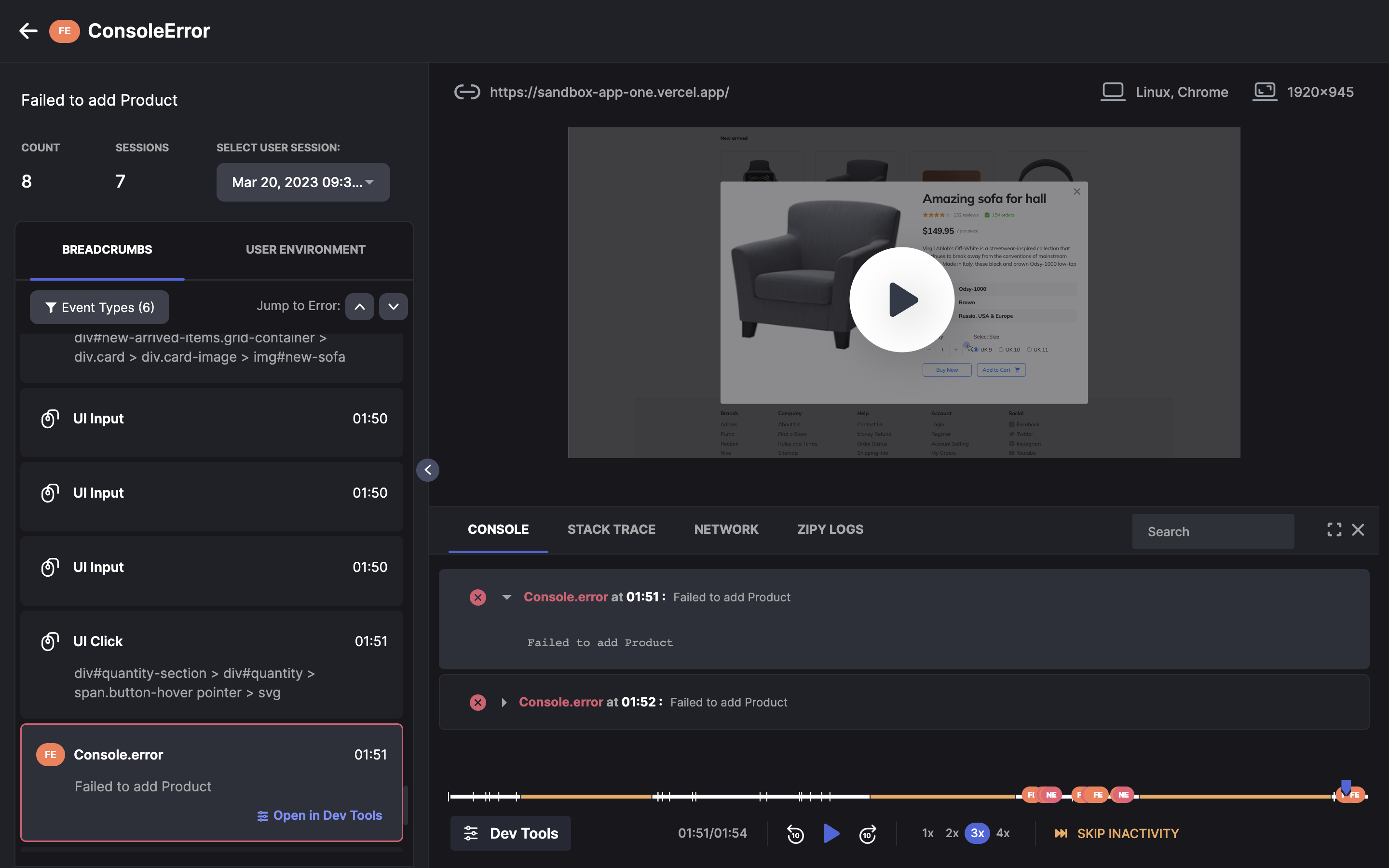
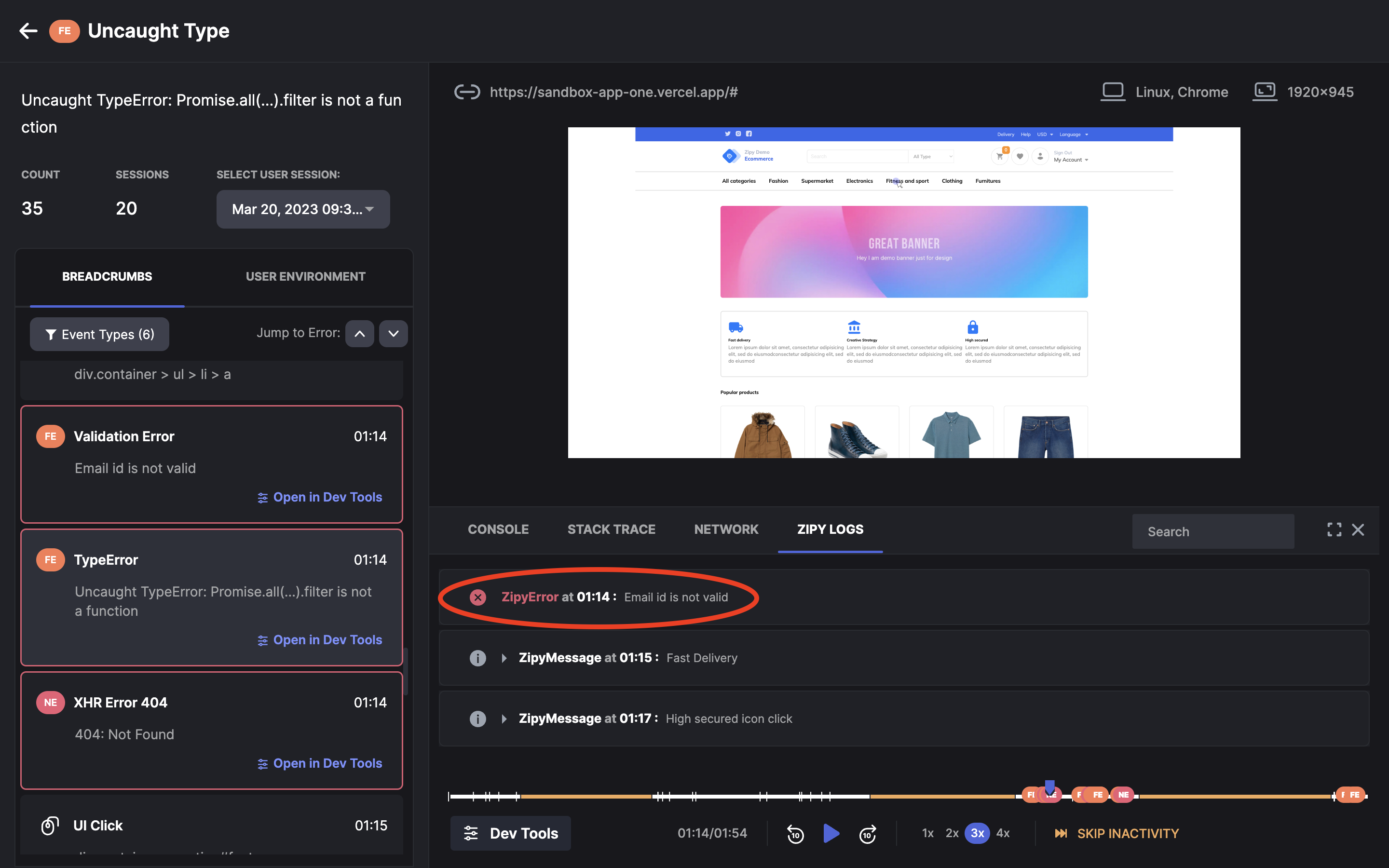
Zipy is a proactive debugging tool that helps your developers monitor session replays in your web app and track errors and exceptions occurring in the end user environment. This can be achieved by simply including a two-line JavaScript SDK provided by Zipy in your web app. Once the installation is successful, Zipy starts recording the user actions, request responses, console events, errors and exceptions on your app in the user environment, thus giving developers a way to proactively resolve issues on the user end.
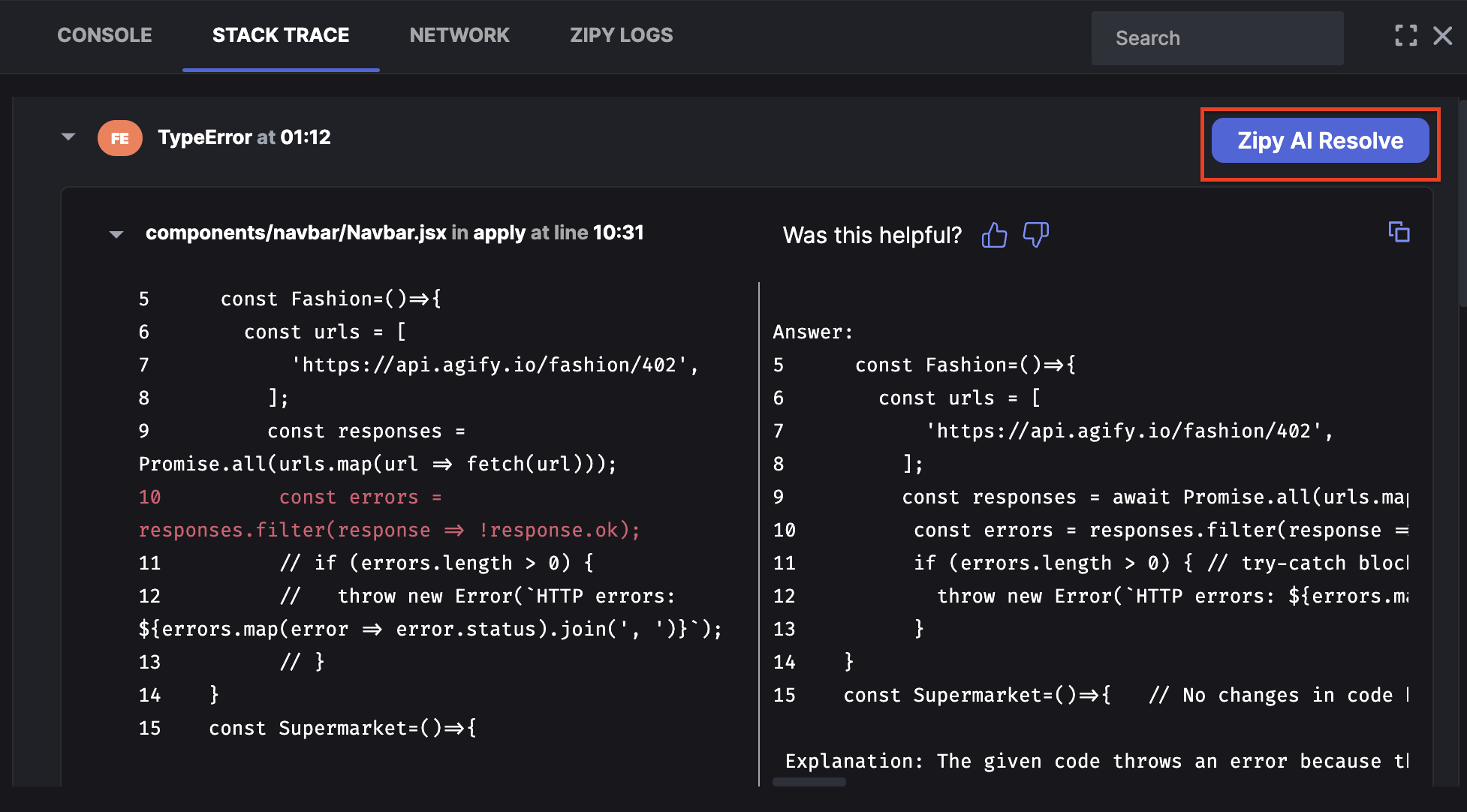
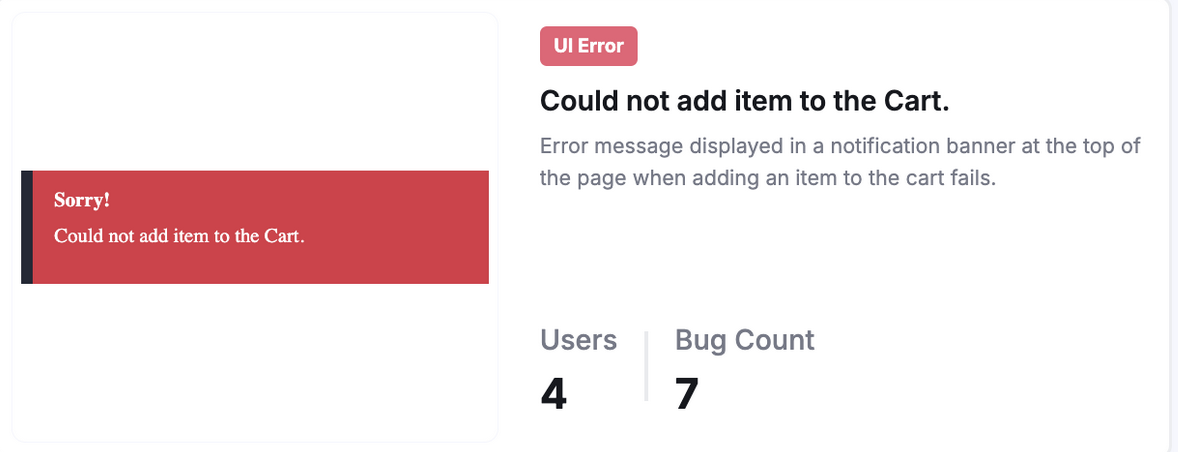
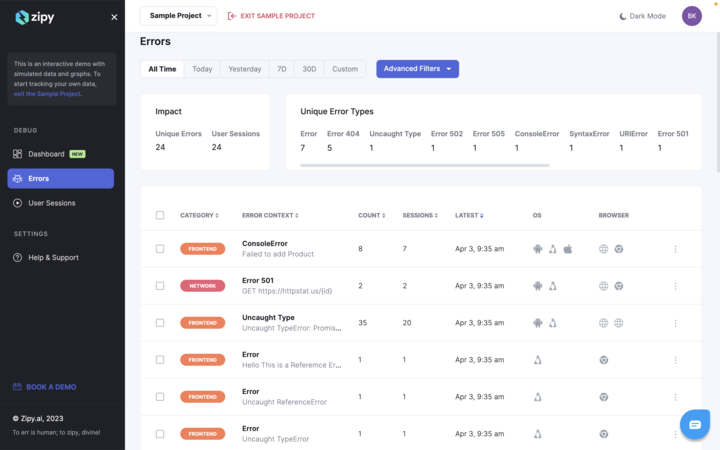
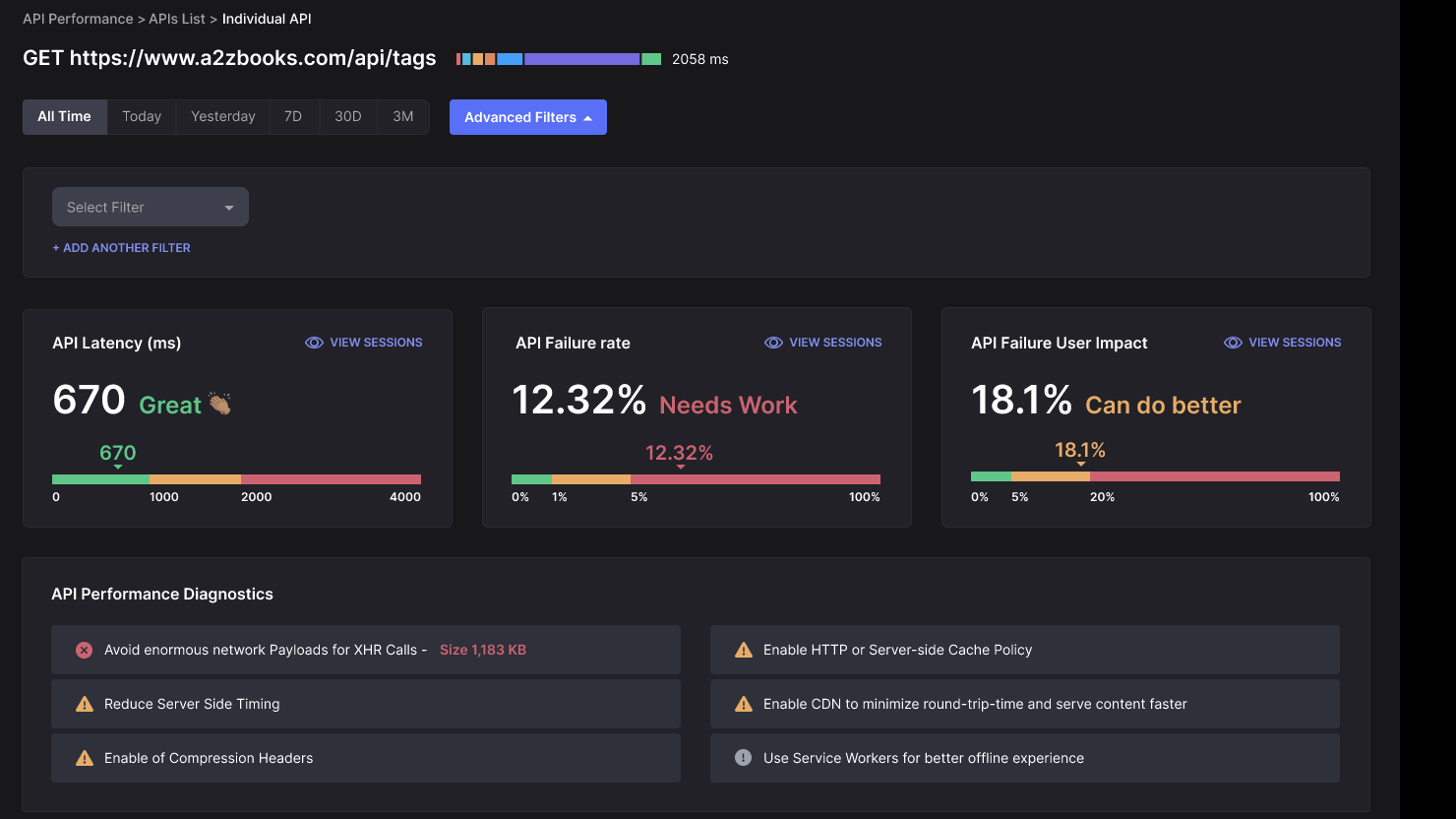
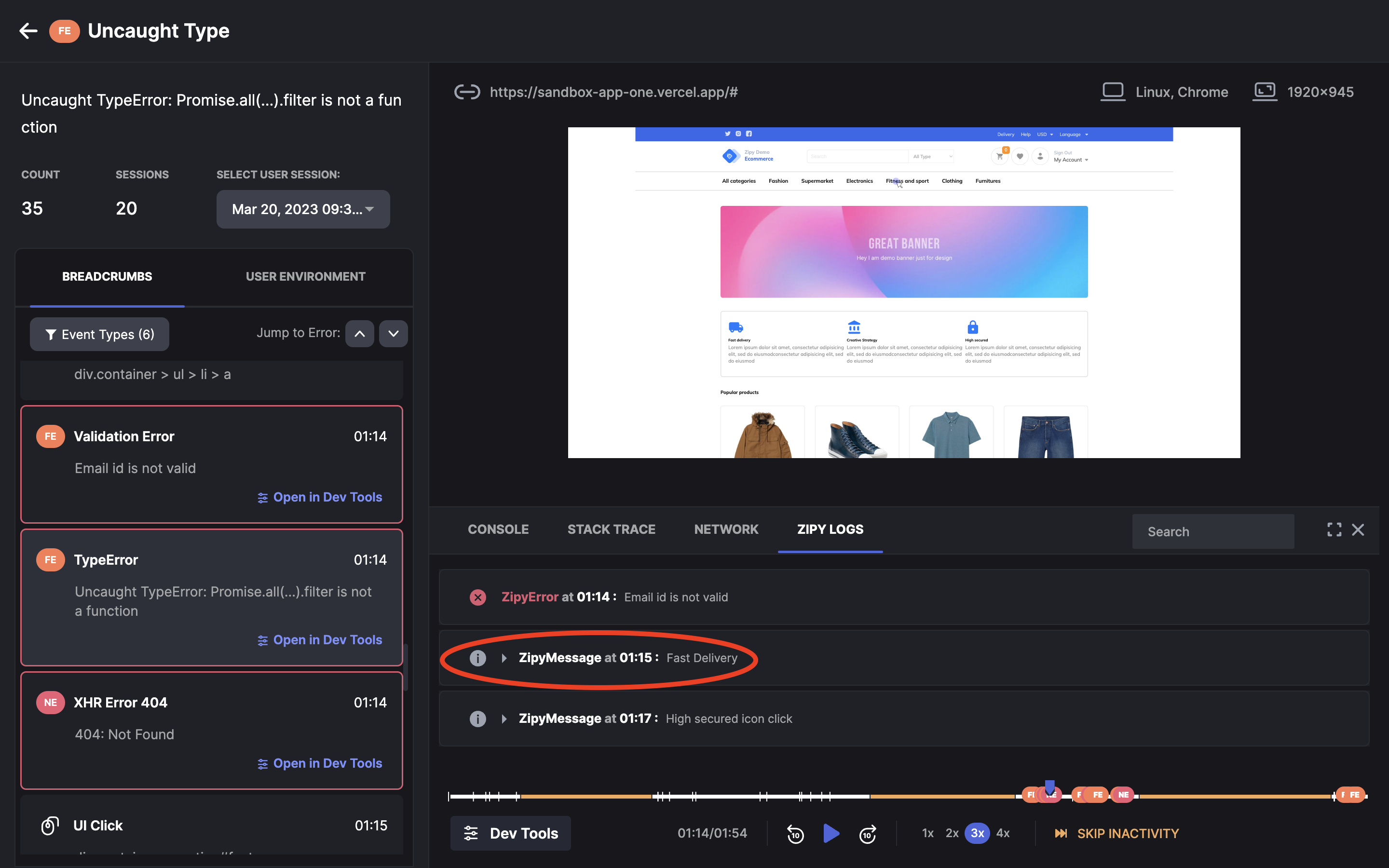
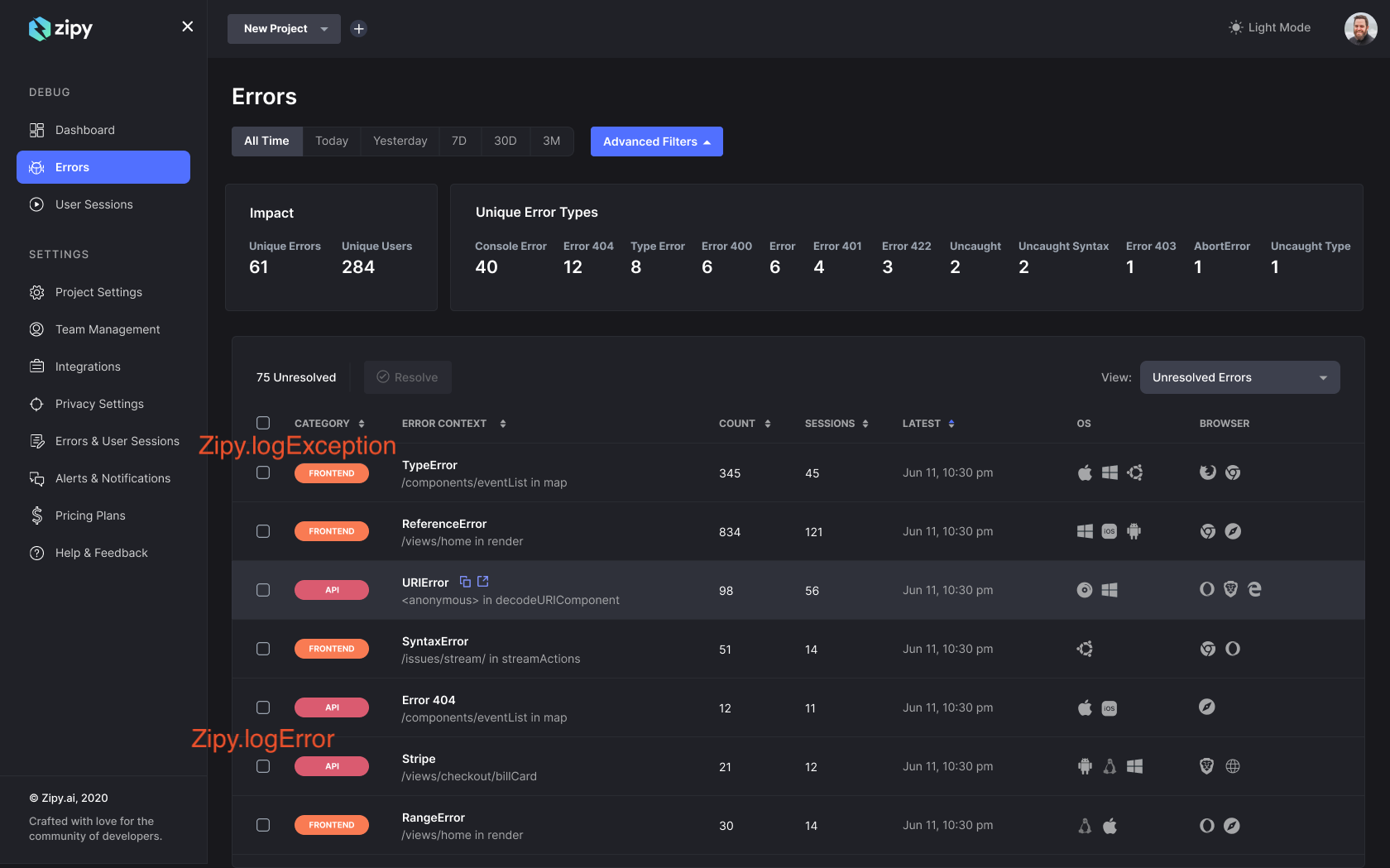
Here's a screenshot of the Error Classification screen in Zipy:
# Install Zipy
How can I install Zipy on my product?
Getting started is easy. Go to the Install page in the Zipy application after Signing In.
You can use either of the following methods:
1. **Install Zipy via SDK script**
You can achieve this by simply including a two-line JavaScript SDK provided by Zipy in the head section of the html page of your web application.
Sample SDK script:
**Note:** If you are using **lazy loading** for external scripts on your website, please ensure that the Zipy script is downloaded before calling the `zipy.init()` function.
\
2\. **Install Zipy via npm**
Following are the steps for installation:
* Install zipy module in the app project:
```
npm i zipyai
```
* Then import zipy module and initialize in your \_app.js or any other source file:
```
import zipy from 'zipyai';
zipy.init('YOUR_PROJECT_SDK_KEY');
```
Please sign into [*https://app.zipy.ai*](https://app.zipy.ai/) to get your Project SDK Key.
# Installing with Google Tag Manager
Installing Zipy with Google Tag Manager
You will need to integrate the Zipy SDK before you can start recording sessions and errors. Here are the steps for Integrating Zipy through GTM
**Step 1. Go to Google Tag Manager** [**https://tagmanager.google.com/#/home**](https://tagmanager.google.com/#/home)
**Step 2. Select or Create the account where you would like to Install Zipy**
**Step 3. Select Tags from the Workspace Menu**
**Step 4. Create a New Tag**
**Step 5. Select Tag Configuration**
**Step 6. Choose Custom HTML tag in Tag Type**
**Step 7. Open a new tab in browser and sign into Zipy app -** [**https://app.zipy.ai/sign-in**](https://app.zipy.ai/sign-in)
**Step8. Go to Project Settings and copy the Script Tag**
**Step 9. Paste this Script Tag in Custom HTML in GTM**
**Step 10. Select Triggering from Tag Configuration**
**Step 11. Select All Pages from Triggers**
**Step 12. Save the Tag Configuration**
**Step 13. Click on Submit, you are almost there.**
**Step 14. Add the Version Name and Publish! You are all set.**
# Supported frameworks
What types of apps and frameworks does Zipy support?
Zipy works with any JavaScript web app and supports most commonly used frameworks/libraries like ReactJS,Next.js Angular, Svelte, AngularJS, VueJS, JQuery, Ember etc.
For Mobile support please join our waitlist here
{% embed url="" %}
{% embed url="" %}
# Security Overview
Zipy Security Overview
We believe that consumer experience data is very important for your business and security of this data is equally important.
Hence to provide our customers peace of mind we follow certain security standards and practices, which will constantly keep evolving to protect the data against any security breaches.
Our customers can control what data Zipy will record and store. Any data that our customers deem sensitive should not be recorded and Zipy will not store it.
The following are the best practices followed by Zipy to ensure the security of our customers data.
**System Security**
* Servers and Networking
All production servers running Zipy are hosted on Google Cloud and support only https connections on port 443.
All recorded data transmitted from customer products to Zipy servers is over https and hence encrypted and secure. We support SSL certificates on all our network API endpoints.
Our website is also secure and supports https.
* Storage Security
We are storing all customer data in Google Cloud Platform which allows multi layer access, encryption and monitoring.
Each customer data is stored in a separate bucket.
Data is stored in an encrypted manner using Google-managed keys. (Objects are encrypted automatically using keys that Google manages on Zipy’s behalf)
We plan to use Customer-managed keys going forward.
**Employee Access**
We use Google account roles and policies to verify employee account identity. We also provide two factor authentication for all sensitive data access. All Google Cloud based access is based on Google accounts.
**Application Security**
* Sensitive Data
Any data that is sensitive to the customer shall not be recorded by Zipy unless specified or enabled by the customer. Zipy provides configuration parameters to allow the customers to enable and disable what data is recorded by Zipy.
* All recorded data is transferred over https ( Data security in transit)
* All recorded data is stored in encrypted format in separate customer partitions ( Data security in store)
* SDK ( javascript) which is embedded in customers code
* The sdk is hosted at a secure endpoint on the Google cloud and it cannot cause security vulnerabilities as all the communication endpoints are behind SSL certificates and only allow an https connection.
* Every customer has a unique sdk key which can only be used by them. It is verified and authenticated in Zipy backend before storing any data for that customer. There is an additional handshake Zipy provides before any communication is initiated with Zipy servers for recording and storing data.
* Developer interface
* Our developer console - app.zipy.ai allows only authenticated users to login. We support standard JWT email authentication and SSO currently.
* All current developer console REST APIs are over https.
# Sensitive User Data
How does Zipy handle sensitive user data?
At Zipy, data privacy and security is of utmost importance to us. Hence by default, our tool will disable the capture of all sensitive and Personal Identifiable Information of the users, which includes email IDs, passwords, usernames, credit card information, etc.
Further, Zipy allows configuration of the following parameters, to ensure better privacy. Please reach out to us if you want to change the default values.
| **Config Param Name** | **Description** | **Default Value** |
| --------------------- | ---------------------------------------------------------------------------- | ----------------- |
|
IP Capture
| Capture IP address of the user | true |
| Input Masking | Masking of user inputs in TextFields, TextAreas, FormInputs, Passwords, etc. | true |
Also, Zipy allows you to block additional sensitive data using the **zipy-block** class.
**\
Sample div\
**
Example Usage:
```html
```
# SOC2 Type II
Zipy is SOC2 compliant
Zipy is SOC2 Type II compliant. If you need more information please reach out to .
For access to the complete report, email us at: [support@zipy.ai](https://app.gitbook.com/u/t9mAVGyfoAQhXCDtG4mCGsTsFZl2)
# React Native Setup
# Install React Native
How do I install Zipy in my React Native mobile application?
**Steps to install Zipy**
1. Installing Zipy Module
```javascript
npm install zipyai-react-native
```
2\. After installing the Zipy package, you also need to install the following package
```javascript
npm install react-native-fs
```
3. Import the Zipy module and initialize it in your `index.js` or another source file used as the entry point:
```javascript
import zipy from 'zipyai-react-native';
zipy.init('YOUR_API_KEY');
```
**Important: To view session replays, it is necessary to implement** [**Gesture Capturing.**](https://docs.zipy.ai/zipy-for-mobile/react-native-setup/gesture-capturing)
Haven't set up an account or Zipy project yet? No worries! Just pop over to to get started.
Once you're all set, come back here to continue.
# Input Masking
Blocking sensitive data on Zipy
Zipy’s **Input Masking** feature ensures that all input field data on the screen is automatically masked during session recordings. This powerful feature prevents sensitive information from being visible in the recordings, safeguarding user privacy and maintaining compliance with data security standards.
Masks sensitive information to prevent unauthorized viewing.
This feature is enabled by default, providing seamless protection for your mobile session replays.
**Note**: Input masking is enabled by default. For custom masking options, please contact us at .
# Session Replay
Analyzing user journeys with Session Replays
Session replay offer a comprehensive view of user journeys through session replays. You can filter these sessions based on various parameters such as time, user email, name, city, country, and operating system.
**Important:** To view session replay, it is necessary to implement [**Gesture Capturing.**](https://docs.zipy.ai/zipy-for-mobile/react-native-setup/gesture-capturing)
Clicking on a session replay allows you to replay the entire session.
The Zipy Session Replay Player provides the following features:
* **Complete Session Replay**
* **Timeline with Inactivity and Errors:** Options to fast forward and adjust playback speeds.
* **Breadcrumbs:** All user events, including clicks, network data, console logs, and errors.
* **Dev Tools:** Console logs, network logs, stack traces, and any custom logs.
* **User Environment Details:** Information such as the operating system, and more.
**Note:** Add storage and internet permissions to your `AndroidManifest.xml` for Zipy’s session replay and initialization.
# Screen Transition Capture
Capturing Screen Transitions for enhanced user journey analysis
Screen Transition Capture is a Zipy feature for capturing screen transitions within your React Native app. To enable this feature, you need to import ScreenNavigation from 'zipy-react-native' and add onStateChange to your NavigationContainer.
Here's how you can do it:
1. **Import the module:**
```javascript
import { ScreenNavigation } from 'zipyai-react-native';
```
2. **Add `onStateChange` to your navigation container:**
# Gesture Capturing
Capturing user Gestures for comprehensive interaction tracking
Gesture Capture is a feature provided by Zipy that allows you to capture gestures within your React Native application. To enable this feature, wrap your application with the `withGestureCapture` wrapper.
Here's how you can do this in your index file:
1. Import withGestureCapture in your index file.
```javascript
import { withGestureCapture } from "zipyai-react-native";
```
2. Wrap withGestureCapture to your main app.
```javascript
AppRegistry.registerComponent(appName, () => withGestureCapture(App));
```
Gesture Capture provides useful information, including:
* The x and y coordinates of user clicks.
* Detection of single taps, double taps, and long taps.
* The component tree on which the user has clicked.
* Identification of the clicked element type (e.g., view, text).
* The specific text clicked by the user (e.g., "Get Started").
# Unhandled Exception Capture
Recording unexpected errors for comprehensive issue logging and analysis
Unhandled Exception Capture is a feature that records unexpected errors that occur during app execution, ensuring that critical issues are logged for later analysis.
**Key Features:**
**Automatic Logging:**
* Captures exceptions not handled by the app.
* Logs detailed error messages and stack traces.
**Contextual Information:**
* Records app state and user actions at the time of the exception.
* Includes device and environment details for better diagnosis.
# Custom Logging
Recording key events and managed errors to boost app reliability and debugging efficiency
Logging Messages and Capturing Handled Exceptions enhances app reliability by recording key events and errors during app execution.
1. **Logging Messages:**
Logs various types of informational, debug, warning, or error messages to capture events, notifications, or actions within the application. It supports custom messages and timestamps for tracking events.
Here is the sample code snippet:
```javascript
zipy.logMessage({
message: 'Your custom message',
maxLength: 10,
exceptionObj: { 'custom key': 'Your custom message' }
});
```
2. **Logging Exceptions:**
Logs exceptions and errors encountered by the application, providing detailed stack traces and context to aid in debugging and troubleshooting. This feature ensures critical data is logged promptly to diagnose and resolve issues.
Here is the sample code snippet:
```javascript
zipy.logException({
message: 'Your custom message',
maxLength: 10,
exceptionObj: { 'custom key': 'Your custom message' }
});
```
**Note:** For custom logging, if `maxLength` is not provided, it will default to capturing the full length.
This feature ensures you have the essential data to quickly diagnose and resolve issues, thereby improving your app's functionality and reliability.
# Fetch and XHR Network Calls
Monitor and log Fetch and XHR network calls seamlessly with Zipy for enhanced debugging and performance optimization.
Zipy offers comprehensive monitoring for Fetch and XHR network calls. Automatically log all network requests, capturing details such as URLs, request methods, headers, bodies (if applicable), and response information. This feature aids in debugging network issues, optimizing performance, and gaining insights into how your application interacts with external APIs and services.
**Key Features:**
**Automatic Logging:**
* Captures all network requests automatically.
* Logs comprehensive details including URLs, methods, headers, and responses.
**Enhanced Debugging:**
* Facilitates thorough analysis and debugging of network interactions.
By enabling Network call monitoring, developers can effectively monitor and analyze network activity within their applications, ensuring robust performance and reliability.
# Profiling
Optimize application performance and gain deeper insights with Zipy's profiling tools.
Zipy's profiling feature allows you to monitor and analyze your application's performance, identifying bottlenecks and optimizing resource usage. This helps you ensure your application runs smoothly and efficiently.
**Key Features:**
**Comprehensive Monitoring:**
* Tracks application performance in real-time.
* Monitors CPU, memory usage, and other critical metrics.
**Detailed Analysis:**
* Provides in-depth reports on performance bottlenecks.
* Identifies inefficient code paths and resource-heavy operations.
# Device Information Capture
Capture device information with Zipy to optimize app performance across diverse hardware configurations.
Device information is automatically collected upon Zipy initialization, providing detailed insights into users' devices to optimize app performance across various hardware configurations.
**Key features include:**
* **Device Type and Model:** Identifies the specific device and model.
* **Operating System:** Captures OS type and version.
* **Screen Resolution:** Records screen size and pixel density.
* **Hardware Specifications:** Details RAM and storage.
* **Network Information:** Captures network type and speed.
* **Battery Status:** Logs battery level and charging status.
# Session URL Retrieval
Retrieve and utilize the current session URL dynamically with Zipy's getCurrentSessionUrl function.
Retrieve the current session URL with Zipy's getCurrentSessionUrl function, enabling you to obtain and utilize the session's URL dynamically. Here is a sample code snippet:
```javascript
const url = zipy.getCurrentSessionUrl();
console.log('Current session URL:', url);
```
This function can be useful for tracking and analyzing user behavior within your application.
# Identify Users
How do I identify my users or customers using Zipy?
To identify **users you will need to additionally call zipy.identify(uuid, {userInfo}).** This will help you identify the users of your application by associating your own unique identifier with their activity. This method should typically be called when your users identify themselves by signing in to your application.
\
To identify users you need to-
1. [Install zipy ](https://docs.zipy.ai/zipy-for-mobile/react-native-setup/install-react-native)for react-native in your application.
2. Import zipy where you want to identify the user
```javascript
import zipy from 'zipyai-react-native';
```
3. Call the identify function like this
```javascript
zipy.identify("cbrandon@brands.com",{ //uuid should be unique for all the users
email: "cbrandon@brands.com",
firstName: "Charles",
lastName : "Brandon",
})
```
To anonymize or disassociate a previously identified user of your application from the session, use the following code in a source file where the user signs out of your application:
```javascript
import zipy from 'zipyai-react-native';
zipy.anonymize();
```
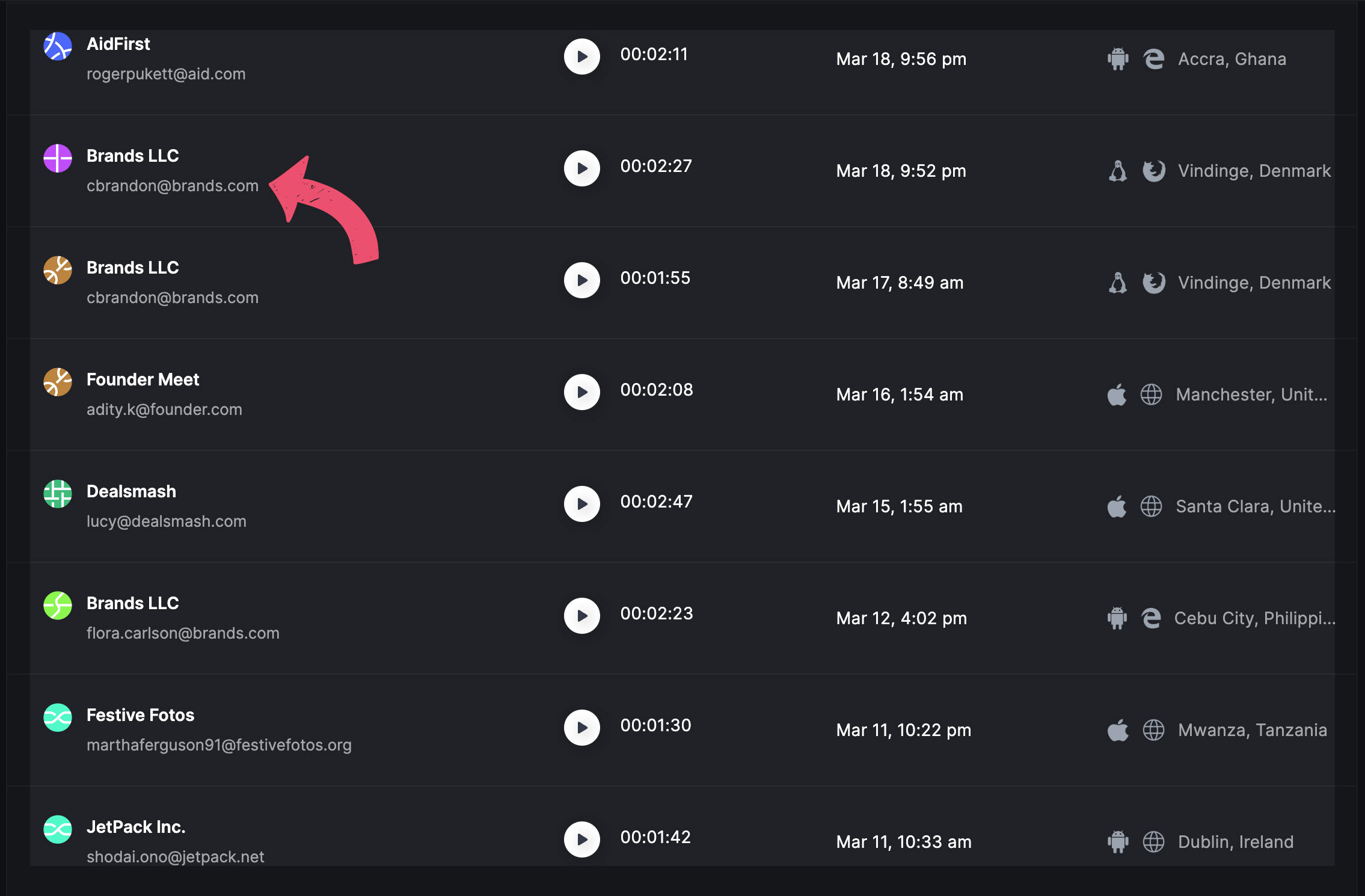
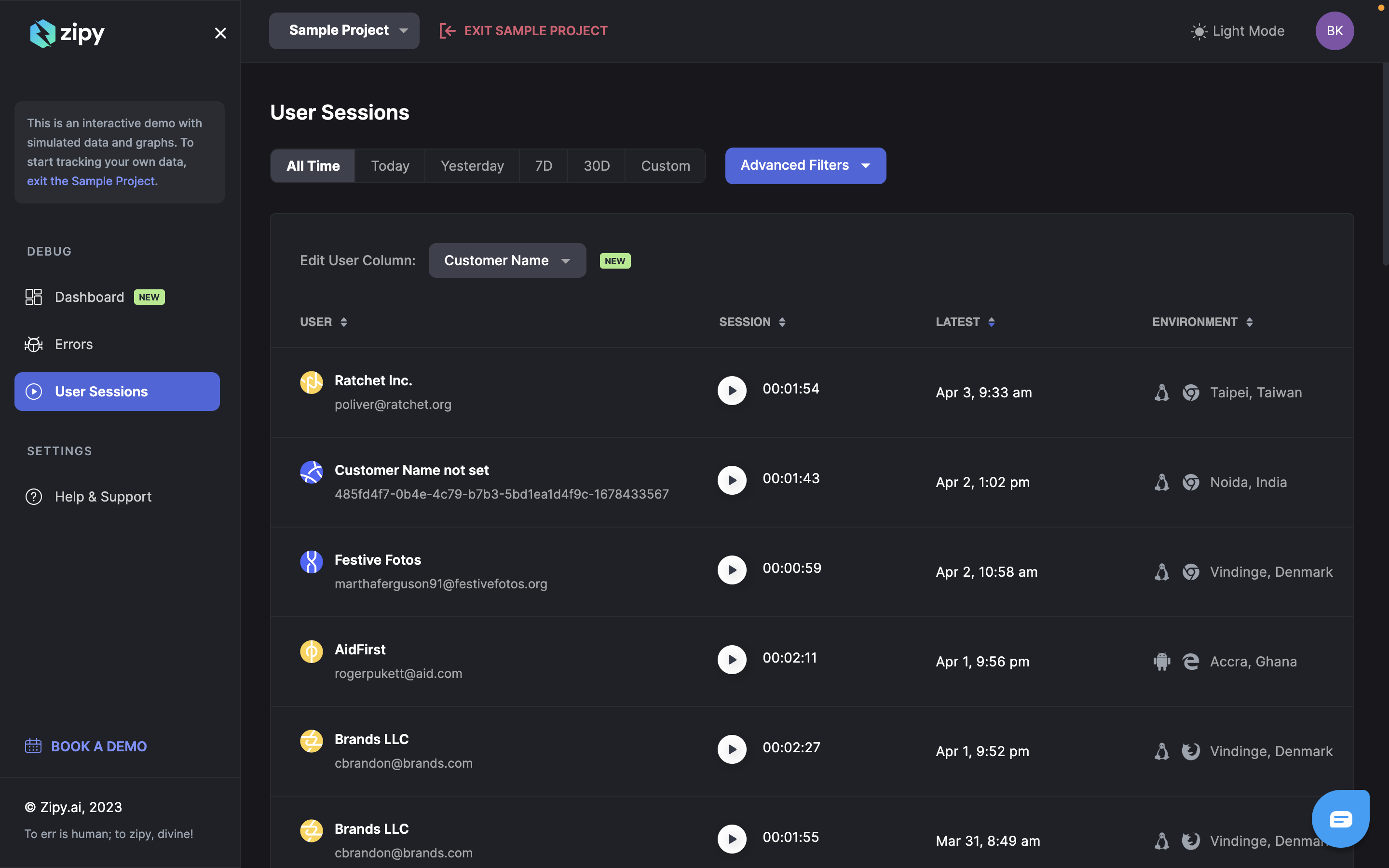
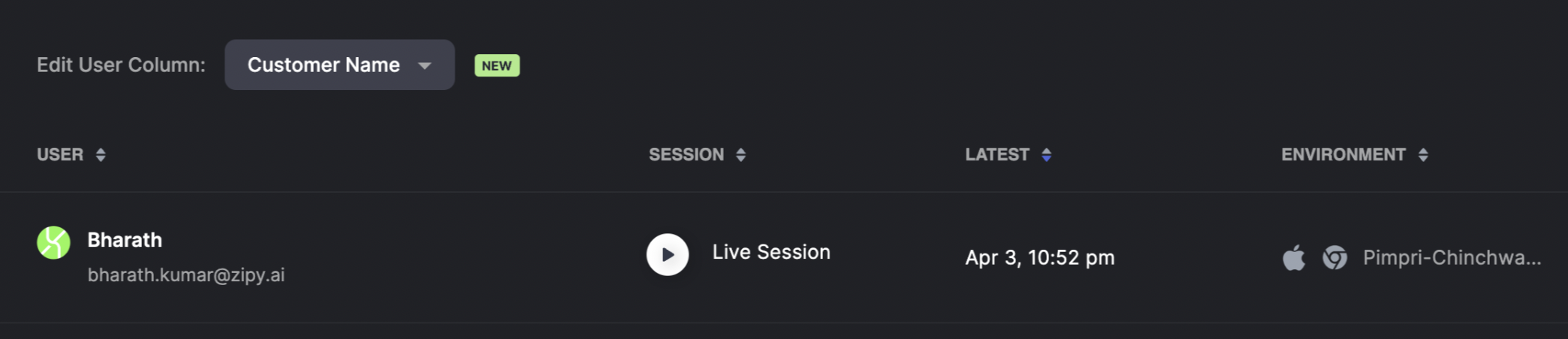
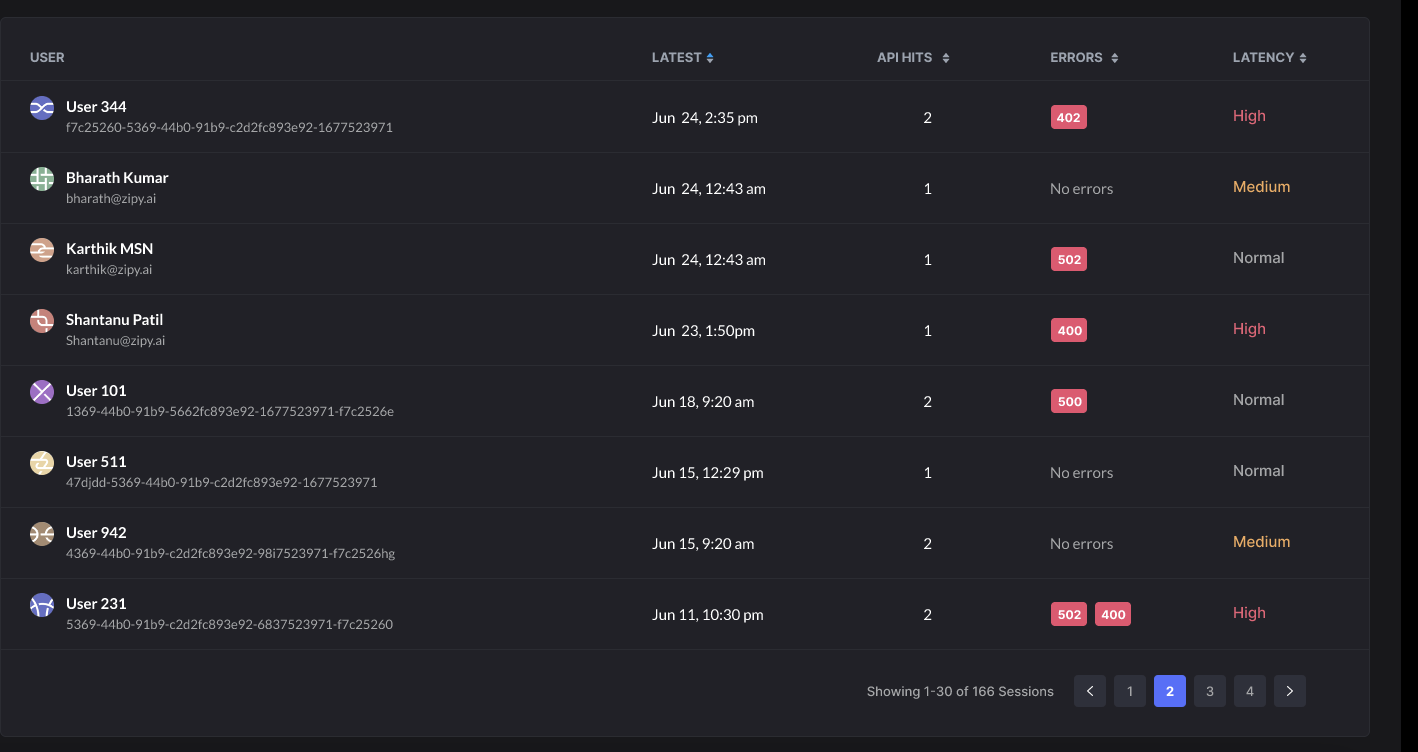
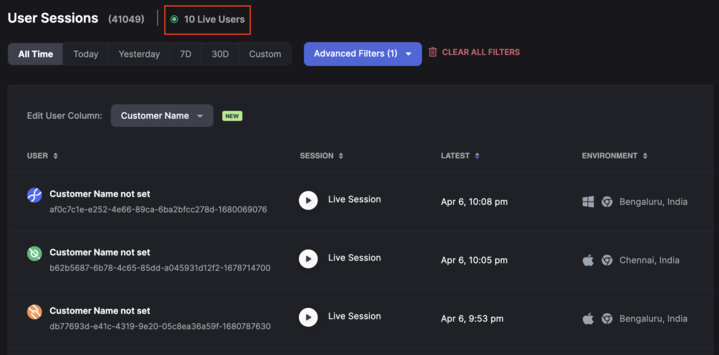
**The** `uuid` **sent to Zipy can be viewed in the Session Replays list in the user column, as shown in the image below:**
zipy.identify(uid, {userInfo})
Following are the method parameters:
| Name | Description |
| -------- | ---------------------------------------------------------------------------------------------------------------------------------------------------------------------------------- |
| uuid | A string denoting your unique identifier for your user. Examples of unique identifiers could be UUID, email ID, full name or any other string that uniquely identifies your users. |
| userInfo | A JSON object which specifies additional details about your user. (Optional) |
**Previously identified users of your application can be anonymized by calling the zipy.anonymize()** **method. This will automatically split the session and associate the new session with a new anonymous user which Zipy will identify with its own identification. This method should typically be called when users sign out of your application.**
### **Custom identifiers**
We allow a maximum of 10 custom identifiers per project which can be created as per your use-case. To use custom identifiers, you can add them to the existing userInfo object in Zipy’s identify method:
zipy.identify(uid, \[userInfo])
**In case you want to add your own custom identifiers in addition to the identifiers we have defined for you, please reach out to .**
# Firebase Integration
If you are using Firebase for capturing crashes and ANRs or freezes in your application, then Zipy adds much more information to those with a seamless integration. You can now link the Zipy session to your crashes and observe the actions performed by the user before the crash and identify any network or framework error that led to a crash or freeze for end-to-end debugging.
Here are the simple steps to integrate Zipy with Firebase:
1. Retrieve the current session URL in your app with Zipy’s getCurrentSessionUrl function, enabling you to obtain and utilize the session’s URL dynamically. Here is a sample code snippet:
```javascript
const sessionUrl = zipy.getCurrentSessionUrl();
console.log('Current session URL:', sessionUrl);
```
2\. Add this url to Firebase as a key so the session url is passed with any crash or ANR
```javascript
crashlytics().setAttribute('ZipySessionURL', sessionUrl);
```
Now, with every crash or freeze, Zipy’s session url will be passed to Firebase and you can get more insights on the crashes from the replays.
# Flutter Setup
# Install Flutter
How do I install Zipy in my Flutter mobile application?
**Steps to install Zipy**
1. Installing Zipy Plugin
```dart
flutter pub add zipy_flutter
```
This will add a line like this to your package's pubspec.yaml and run `flutter pub get`
```yaml
dependencies:
zipy_flutter: ^0.1.6
```
2. Import the Zipy module and initialize it in your `main.dart` or another source file used as the entry point:
```dart
import 'package:zipy_flutter/zipy_flutter.dart'; // import
void main() {
WidgetsFlutterBinding.ensureInitialized(); // Initialize the binding.
Zipy.init(key: 'YOUR_API_KEY');
runApp(MyApp());
}
```
**Important:** **To view session replays, it is necessary to implement** [**Gesture Capturing.**](https://docs.zipy.ai/zipy-for-mobile/flutter-setup/gesture-capturing)
Haven't set up an account or Zipy project yet? No worries! Just pop over to to get started.
Once you're all set, come back here to continue.
# Session Replay
Analyzing user journeys with Session Replays
Session replays offer a comprehensive view of user journeys through session replays. You can filter these sessions based on various parameters such as time, user email, name, city, country, and operating system.
**Important:** To view session replays, it is necessary to implement [**Gesture Capturing**](https://docs.zipy.ai/zipy-for-mobile/flutter-setup/gesture-capturing)**.**
Clicking on a session replays allows you to replay the entire session.
The Zipy session replays Player provides the following features:
* **Complete Session Replay**
* **Timeline with Inactivity and Errors:** Options to fast forward and adjust playback speeds.
* **Breadcrumbs:** All user events, including clicks, network data, console logs, and errors.
* **Dev Tools:** Console logs, network logs, stack traces, and any custom logs.
* **User Environment Details:** Information such as the operating system, and more.
**Note:** Add storage and internet permissions to your `AndroidManifest.xml` for Zipy’s session replay and initialization.
# Input Masking & Custom Masking
Blocking sensitive data on Zipy
Zipy’s **Input Masking** feature ensures that all input field data on the screen is automatically masked during session recordings. This powerful feature prevents sensitive information from being visible in the recordings, safeguarding user privacy and maintaining compliance with data security standards.
Masks sensitive information to prevent unauthorized viewing.
**Update the Flutter package version to 0.0.7 or above.**
This feature is enabled by default, providing seamless protection for your mobile session replays.
### **Custom Input Masking**
Zipy also offers custom input masking options. You can implement these by wrapping buttons, widgets, or containers with `ZipyBlock`. See the example below for guidance.
```dart
import 'package:zipy_flutter/zipy_flutter.dart';
ZipyBlock(
child: ElevatedButton(
onPressed: dioPostFailCall,
child: Text('Dio POST Fail'),
),
),
```
**Note**: Input masking is enabled by default. For custom masking options, please contact us at [support@zipy.ai](https://app.gitbook.com/u/t9mAVGyfoAQhXCDtG4mCGsTsFZl2).
# Screen Transition Capture
Capturing Screen Transitions for enhanced user journey analysis
Screen Transition Capture is a Zipy feature for capturing screen transitions within your flutter app.
Here's how you can do it:
1. **Import the Observer in you material app:**
```dart
MaterialApp(
navigatorObservers: [ZipyNavigationObserver()], //need to add this for capturing screen transitions
home: const HomeScreen(),
routes: {
'/profile': (context) => const ProfileScreen(),
},
),
```
### Dynamic Screen Tagging
With dynamic screen tagging, you can enhance your analytics by assigning each screen a contextual name that reflects its real-time content.
```dart
import 'package:zipy_flutter/zipy_flutter.dart';
Zipy.tagScreenName(screenName: 'YOUR_SCREEN_NAME');
```
> NOTE: If both the navigation observer and dynamic screen tagging are implemented, duplicate screen names may be captured — one by the observer and another by the `tagScreenName` method.\
> Use only one approach, or if you use both, apply dynamic screen tagging only to screens that are **not** part of the main app’s routes.
# Gesture Capturing
Capturing user Gestures for comprehensive interaction tracking
Gesture Capture is a feature provided by Zipy that allows you to capture gestures within your Flutter application. To enable this feature, wrap your application with the `ZipyWrapper` wrapper.
1. Wrap ZipyWrapper to your main app.
```dart
import 'package:zipy_flutter/zipy_flutter.dart';
Future main() async {
WidgetsFlutterBinding.ensureInitialized();
Zipy.init(key: 'YOUR_API_KEY');
runApp(const ZipyWrapper(child: MyApp()));
}
```
or
Gesture Capture provides useful information, including:
* The x and y coordinates of user clicks.
* Detection of single taps, double taps, and long taps.
* The component tree on which the user has clicked.
* Identification of the clicked element type (e.g., view, text).
* The specific text clicked by the user (e.g., "Get Started").
# Unhandled Exception Capture
Recording unexpected errors for comprehensive issue logging and analysis
Unhandled Exception Capture is a feature that records unexpected errors that occur during app execution, ensuring that critical issues are logged for later analysis.
**Key Features:**
**Automatic Logging:**
* Captures exceptions not handled by the app.
* Logs detailed error messages and stack traces.
**Contextual Information:**
* Records app state and user actions at the time of the exception.
* Includes device and environment details for better diagnosis.
# Custom Logging
Recording key events and managed errors to boost app reliability and debugging efficiency
Logging Messages and Capturing Handled Exceptions enhances app reliability by recording key events and errors during app execution.
1. **Logging Messages:**
Logs various types of informational, debug, warning, or error messages to capture events, notifications, or actions within the application. It supports custom messages and timestamps for tracking events.
Here is the sample code snippet:
```dart
Zipy.logMessage(
message: 'Log Message Button Pressed',
exceptionObj: {'zipy ': 'test'},
maxLength: 100 // this is an optional field
);
```
2. **Logging Exceptions:**
Logs exceptions and errors encountered by the application, providing detailed stack traces and context to aid in debugging and troubleshooting. This feature ensures critical data is logged promptly to diagnose and resolve issues.
Here is the sample code snippet:
```dart
Zipy.logException(
message: 'Log Message Button Pressed',
exceptionObj: {'zipy ': 'test'},
maxLength: 100 // this is an optional field
);
```
**Note:** For custom logging, if `maxLength` is not provided, it will default to capturing the full length.
This feature ensures you have the essential data to quickly diagnose and resolve issues, thereby improving your app's functionality and reliability.
# Http Network Calls
Monitor and log Http calls seamlessly with Zipy for enhanced debugging and performance optimization.
Use the `ZipyHttpClient` to call http network calls in your flutter application
```dart
import 'package:zipy_flutter/zipy_flutter.dart';
final client = ZipyHttpClient();
client.get(url); or client.post(url);
```
Example-
```dart
final client = ZipyHttpClient();
const String url = 'url';
final Map headers = {
'Content-Type': 'application/json',
'Authorization': 'Bearer your_api_key',
};
try {
final response = await client.get(
Uri.parse(url),
headers: headers,
);
} catch (e) {
print(e);
}
```
or
```dart
final client = ZipyHttpClient();
const baseUrl = 'url';
var request = http.Request('GET', Uri.parse(baseUrl));
http.StreamedResponse response = await client.send(request);
```
Use the instance of `client` to call the api by importing it wherever needed or you can call it in your network call wrapper.
# Dio Network Calls
Monitor and log Dio calls seamlessly with Zipy for enhanced debugging and performance optimization.
Use the `ZipyDioClient` to call http network calls in your flutter application
```dart
import 'package:zipy_flutter/zipy_flutter.dart';
final dioClient = ZipyDioClient();
dioClient.get(url); or dioClient.post(url);
```
Example-
1. Using dio interceptors.
```dart
final Dio dio = Dio();
dio.interceptors.add(NetworkLogger());
final Uri todosUri = Uri.parse('url');
final Map headers = {
'Content-Type': 'application/json',
'Authorization': 'Bearer your_api_key',
};
final Map postData = {
'title': '2',
'body': '33',
'userId': 4343,
};
try {
final response = await dio.post(
todosUri.toString(),
data: postData,
options: Options(headers: headers),
);
} catch (e) {
print('Error posting data: $e');
}
```
or
2. Using zipy dio client.
```dart
final dioClient = ZipyDioClient();
const String url = 'url';
final Map headers = {
'Content-Type': 'application/json',
'Authorization': 'Bearer diogetCalls',
};
try {
final Response response = await dioClient.get(
url,
options: Options(headers: headers),
);
} catch (e) {
print(e);
}
```
Use the instance of `client` to call the api by importing it wherever needed or you can call it in your network call wrapper.
# Profiling
Optimize application performance and gain deeper insights with Zipy's profiling tools.
Zipy's profiling feature allows you to monitor and analyze your application's performance, identifying bottlenecks and optimizing resource usage. This helps you ensure your application runs smoothly and efficiently.
**Key Features:**
**Comprehensive Monitoring:**
* Tracks application performance in real-time.
* Monitors CPU, memory usage, and other critical metrics.
**Detailed Analysis:**
* Provides in-depth reports on performance bottlenecks.
* Identifies inefficient code paths and resource-heavy operations.
# Device Information Capture
Capture device information with Zipy to optimize app performance across diverse hardware configurations.
Device information is automatically collected upon Zipy initialization, providing detailed insights into users' devices to optimize app performance across various hardware configurations.
**Key features include:**
* **Device Type and Model:** Identifies the specific device and model.
* **Operating System:** Captures OS type and version.
* **Screen Resolution:** Records screen size and pixel density.
* **Hardware Specifications:** Details RAM and storage.
* **Network Information:** Captures network type and speed.
* **Battery Status:** Logs battery level and charging status.
# Session URL Retrieval
Retrieve and utilize the current session URL dynamically with Zipy's getCurrentSessionUrl function.
Retrieve the current session URL with Zipy's getCurrentSessionUrl function, enabling you to obtain and utilize the session's URL dynamically. Here is a sample code snippet:
```dart
String a = await Zipy.getCurrentSessionURL();
print(a);
```
This function can be useful for tracking and analyzing user behavior within your application.
# Identify Users
How do I identify my users or customers using Zipy?
### Identify a User
To identify **users you will need to additionally call Zipy.identify(uuid, {userInfo}).** This will help you identify the users of your application by associating your own unique identifier with their activity. This method should typically be called when your users identify themselves by signing in to your application.
\
To identify users you need to-
1. [Install zipy ](https://docs.zipy.ai/zipy-for-mobile/flutter-setup/install-flutter)for flutter in your application.
2. Import zipy where you want to identify the user
```dart
import 'package:zipy_flutter/zipy_flutter.dart';
```
3. Call the identify function like this
```dart
Zipy.identify("cbrandon@brands.com", { //uuid should be unique for all the users
email : "cbrandon@brands.com",
firstName : "Charles",
lastName : "Brandon",
});
```
### Anonymize a User
To anonymize or disassociate a previously identified user of your application from the session, use the following code in a source file where the user signs out of your application:
**Note:** We recommend calling `Zipy.anonymize()` when the user logs out. This ends the current identified session and starts a fresh, anonymous session, ensuring that subsequent activity isn’t mistakenly linked to the previous user.
```dart
import 'package:zipy_flutter/zipy_flutter.dart';
Zipy.anonymize();
```
**The** `uuid` **sent to Zipy can be viewed in the Session Replays list in the user column, as shown in the image below:**
Zipy.identify(uid, {userInfo})
Following are the method parameters:
| Name | Description |
| -------- | ---------------------------------------------------------------------------------------------------------------------------------------------------------------------------------- |
| uuid | A string denoting your unique identifier for your user. Examples of unique identifiers could be UUID, email ID, full name or any other string that uniquely identifies your users. |
| userInfo | A JSON object which specifies additional details about your user. (Optional) |
**Previously identified users of your application can be anonymized by calling the zipy.anonymize()** m**ethod. This will automatically split the session and associate the new session with a new anonymous user which Zipy will identify with its own identification. This method should typically be called when users sign out of your application.**
### **Custom identifiers**
We allow a maximum of 10 custom identifiers per project which can be created as per your use-case. To use custom identifiers, you can add them to the existing userInfo object in Zipy’s identify method:
```dart
Zipy.identify("cbrandon@brands.com", {
'email': "cbrandon@brands.com",
'firstName': "Charles",
'lastName' : "Brandon",
'customerName': "LLC",
'product': "Bottles",
});
```
**In case you want to add your own custom identifiers in addition to the identifiers we have defined for you, please reach out to .**
[ ](https://docs.zipy.ai/configure/identifying-users)
# Firebase Integration
If you are using Firebase for capturing crashes and ANRs or freezes in your application, then Zipy adds much more information to those with a seamless integration. You can now link the Zipy session to your crashes and observe the actions performed by the user before the crash and identify any network or framework error that led to a crash or freeze for end-to-end debugging.
Here are the simple steps to integrate Zipy with Firebase:
1. Retrieve the current session URL in your app with Zipy’s getCurrentSessionUrl function, enabling you to obtain and utilize the session’s URL dynamically. Here is a sample code snippet:
```javascript
const sessionUrl = zipy.getCurrentSessionUrl();
console.log('Current session URL:', sessionUrl);
```
2\. Add this url to Firebase as a key so the session url is passed with any crash or ANR
```javascript
FirebaseCrashlytics.instance.setCustomKey('ZipySessionURL',sessionUrl );
```
Now, with every crash or freeze, Zipy’s session url will be passed to Firebase and you can get more insights on the crashes from the replays.
# Session Recording Control
Start, pause, resume, or stop event recording as needed.
**Note: Use version `0.1.1` or above to use this functionality.**
### Overview
The session control functions allow you to manage when data is collected by the SDK. Whether you need to temporarily halt data capture or end a session entirely, the following functions provide the necessary control:
* **Pause:** Temporarily stop capturing events while keeping the session active.
* **Resume:** Continue event recording after a pause.
* **Stop:** End the current session and stop all event recording.
* **Start/Init:** Start a new session after stopping.
### Detailed Function Descriptions
1. **Pause:**
* Use this function when you need to momentarily stop data capture without ending the session.
```dart
Zipy.pause();
```
2. Resume:
* Use this function to continue capturing events after a pause.
* Note that it will start a new session if the current one has already timed out ( i.e. paused for 30mins or whatever is configured).
```dart
Zipy.resume();
```
3. Stop:
* When this function is called, the session ends and no further events are captured. To capture events again, you must initialise a new session.
```dart
Zipy.stop();
```
4. Start/Init:
* Use this function with your API key to either start a new session.
```dart
Zipy.init(key: 'YOUR_API_KEY');
```
# Data Sanitization
Sanitizing sensitive information in payloads, responses, and headers
## Overview
The Zipy Flutter SDK includes powerful data sanitization features to protect sensitive information in your network requests and responses. You can configure what to sanitize, how deep to scrub nested objects, and which keys or headers to target.
## Default Behavior
1. Sanitizes both payloads and responses
2. Sanitizes up to 3 levels deep in nested objects
3. Scrubs the following sensitive keys
```
password, secret, passwd, api_key, apikey, access_token, auth, credentials, mysql_pwd,
stripetoken, cardnumber
```
4. Sanitizes the following headers
```
authorization, auth, auth-token
```
The scrubbing level determines how deep the sanitization process goes into nested objects.
To modify scrubbing level or add your own keys contact us
## How sanitization works
1. When a key matches one in the scrubbing list (case-insensitive), its value is replaced with "xxxx"
2. For headers in the sanitization list, their values are replaced with "xxxx"
3. Both request payloads and responses are sanitized if enabled
### Example
Original Request:
```json
{
"user": {
"name": "John",
"password": "secret123",
"payment": {
"cardnumber": "4111-1111-1111-1111",
"details": {
"api_key": "xyz123"
}
}
}
}
```
Sanitized Request:
```json
{
"user": {
"name": "John",
"password": "xxxx",
"payment": {
"cardnumber": "xxxx",
"details": {
"api_key": "xxxx"
}
}
}
}
```
# iOS Setup
# Install in an iOS app
How do I install Zipy in my iOS mobile application?
## Swift Package Manager
**Option 1: Xcode GUI (Recommended)**
1. Open your project in Xcode
2. Select File > Add Package Dependencies...
3. In the search field, enter: `https://github.com/zipyinc/zipy-ios-sdk.git`
4. Select the version you want to use
5. Click "Add Package"
6. Select your target and click "Add Package" again
**Option 2: Package.swift**
Add the following dependency to your `Package.swift`:
```swift
dependencies: [
.package(url: "https://github.com/zipyinc/zipy-ios-sdk.git", from: "1.0.0")
]
```
> **Note:** Swift Protobuf will be automatically installed as a dependency when you add the ZipyiOS package.
## Zipy Initialization
For optimal performance and complete session capture, initialize the SDK as early as possible in your app's lifecycle, typically in `AppDelegate` or `SceneDelegate`. While you can integrate the SDK at any point in your application, early initialization ensures the best results and most comprehensive data collection.
#### In AppDelegate:
```swift
import ZipyiOS
class AppDelegate: UIResponder, UIApplicationDelegate {
func application(_ application: UIApplication, didFinishLaunchingWithOptions launchOptions: [UIApplication.LaunchOptionsKey: Any]?) -> Bool {
// Initialize Zipy SDK
Zipy.initialize("YOUR_API_KEY")
return true
}
}
```
#### In SceneDelegate:
```swift
import ZipyiOS
class SceneDelegate: UIResponder, UIWindowSceneDelegate {
func scene(_ scene: UIScene, willConnectTo session: UISceneSession, options connectionOptions: UIScene.ConnectionOptions) {
// Initialize Zipy SDK
Zipy.initialize("YOUR_API_KEY")
}
}
```
# Identify Users
How do I identify my users or customers using Zipy?
## Identify a User
To identify **users you will need to additionally call Zipy.identify(uuid, {userInfo}).** This will help you identify the users of your application by associating your own unique identifier with their activity. This method should typically be called when your users identify themselves by signing in to your application.
To identify users you need to-
1. [Install zipy](https://docs.zipy.ai/ios-setup/install-in-an-ios-app) for iOS in you application
2. Import ZipyiOS where you want to identify the user
```swift
import ZipyiOS
```
3. Call the identify function like this
```swift
// Basic user identification without custom keys
Zipy.identify(
externalUUId: "user123",
userInfo: [
"email": "user@example.com",
"firstName": "John",
"lastName": "Doe",
"customerName": "ACME Corp"
]
)
```
## Anonymize a User
To anonymize or disassociate a previously identified user of your application from the session, use the following code in a source file where the user signs out of your application:
```swift
Zipy.anonymize()
```
> **Note:** We recommend calling `Zipy.anonymize()` when the user logs out. This ends the current identified session and starts a fresh, anonymous session, ensuring that subsequent activity isn't mistakenly linked to the previous user.
**The** `uuid` **sent to Zipy can be viewed in the Session Replays list in the user column, as shown in the image below:**
**Previously identified users of your application can be anonymized by calling the zipy.anonymize()** m**ethod. This will automatically split the session and associate the new session with a new anonymous user which Zipy will identify with its own identification. This method should typically be called when users sign out of your application.**
## Custom Identifiers
We allow a maximum of 10 custom identifiers per project which can be created as per your use-case. To use custom identifiers, you can add them to the existing userInfo object in Zipy’s identify method:
```swift
Zipy.identify(
externalUUId: "user123",
userInfo: [
"email": "user@example.com",
"firstName": "John",
"lastName": "Doe",
"customerName": "ACME Corp",
"role": "admin",
"plan": "premium",
"country": "US"
]
)
```
**In case you want to add your own custom identifiers in addition to the identifiers we have defined for you, please reach out to .**
# Screen Tracking & Tagging
Screen Tracking and Tagging for enhanced user journey analysis
## Overview
Zipy’s SDK seamlessly instruments your app to capture every screen transition and view controller name without any extra setup. As users navigate through your interface, Zipy automatically logs screen appearance, and also it takes screenshots on every transition. This hands‑off approach ensures you get comprehensive visibility into user flows from the moment you integrate Zipy, so you can focus on building features instead of writing tracking code.
## Automatic Screen Tracking
The SDK automatically tracks screen transitions with some important behaviors to note:
* View controllers are tracked automatically with their class names
* View controllers starting with `UI`, `_UI`, `PU` or `WK` are ignored to prevent system-level tracking
* No additional code is required for basic screen tracking
## Manual Screen Tagging
While an automatic screen will cover almost all the cases, you can implement manual screen tagging when you need to. This can be used in various use cases like tagging popups, tabs, etc. And also, you can update screen names for dynamic content.
* Override the default screen name
* Track custom views, popups, or tab changes
* Add tracking to views that aren't traditional view controllers
**Here is an example on how you can use manual screen tagging**
```swift
import ZipyiOS
class ProfileViewController: UIViewController {
override func viewDidAppear(_ animated: Bool) {
super.viewDidAppear(animated)
Zipy.tagScreenName("UserProfile")
}
func showCustomPopup() {
// Tag custom popup view
Zipy.tagScreenName("ProfileSettings-Popup")
// Show popup logic
}
func onTabChanged(index: Int) {
// Tag different tabs
let tabName = ["Overview", "Details", "Settings"][index]
Zipy.tagScreenName("Profile-\(tabName)Tab")
}
}
```
## Handling Dynamic Content using Screen Tagging
With dynamic screen tagging, you can enrich your analytics by giving each screen a contextual name that reflects its real‑time content—whether it’s a product category, user segment, or custom UI state. Instead of seeing every product detail view under a generic label, you’ll automatically tag them as “ProductDetails‑Electronics,” “ProductDetails‑Apparel,” or whatever category the user is viewing. This makes it easy to filter session replays.
```swift
func showProductDetails(product: Product) {
Zipy.tagScreenName("ProductDetails-\(product.category)")
}
```
With both automatic and manual tagging, Zipy gives you full control over how screens are identified and tracked, ensuring your analytics align perfectly with your app’s unique structure.
# Custom Logging
Recording key events and managed errors to boost app reliability and debugging efficiency
Logging Messages and Capturing Handled Exceptions enhances app reliability by recording key events and errors during app execution.
### Log Messaage
Logs various types of informational, debug, warning, or error messages to capture events, notifications, or actions within the application.
```swift
import ZipyiOS
// Simple message logging
Zipy.logMessage("User completed onboarding")
// With additional context
Zipy.logMessage(
"Payment processed",
exceptionObj: ["amount": 99.99, "currency": "USD"]
)
// With custom message length
Zipy.logMessage(
"Detailed process log...",
exceptionObj: ["processId": "12345"],
maxLength: 2000
)
```
### Log Errors
Logs all the error, providing all the details you pass for debugging. Captures and records error events within your application
```swift
// Simple error logging
Zipy.logError("Failed to process payment")
// With error object
let error = NSError(
domain: "PaymentError",
code: 401,
userInfo: [NSLocalizedDescriptionKey: "Invalid card"]
)
Zipy.logError("Payment failed", exceptionObj: error)
```
### Log Exceptions
Logs exceptions encountered by the application, providing detailed stack traces and context to aid in debugging and troubleshooting. This feature ensures critical data is logged promptly to diagnose and resolve issues.
```swift
// Simple exception logging
Zipy.logException("Unexpected data format")
// With exception details
do {
// Your code that might throw
} catch {
Zipy.logException(
"Data processing failed",
exceptionObj: error
)
}
```
**Note:** For custom logging, if `maxLength` is not provided, it will default to capturing the full length.
# Session URL Retrieval
Retrieve and utilize the current session URL dynamically with Zipy's getCurrentSessionUrl function.
Retrieve the current session URL with Zipy's getCurrentSessionUrl function, enabling you to obtain and utilize the session's URL dynamically. Here is a sample code snippet:
```dart
let sessionURL = Zipy.getCurrentSessionURL()
print("Current session can be viewed at: \(sessionURL)")
```
This function can be useful for tracking and analyzing user behavior within your application.
# Session Recording Control
Start, pause, resume, or stop event recording as needed.
## Overview
The session control functions allow you to manage when data is collected by the SDK. Whether you need to temporarily halt data capture or end a session entirely, the following functions provide the necessary control:
* **Pause:** Temporarily stop capturing events while keeping the session active.
* **Resume:** Continue event recording after a pause.
* **Stop:** End the current session and stop all event recording.
* **Start/Init:** Start a new session after stopping.
## Pause Recording
Use this function when you need to momentarily stop data capture without ending the session.
```swift
// Pause recording (e.g., before handling sensitive information)
Zipy.pause()
// Your sensitive code here
handleSensitiveData()
// Resume recording
Zipy.resume()
```
## Resume Recording
Use this function to continue capturing events after a pause.
> **Note:** It will start a new session if the current one has already timed out ( i.e. paused for 30mins or whatever is configured).
```swift
Zipy.resume()
```
## Stop Recording
When this function is called, the session ends and no further events are captured. To capture events again, you must initialise a new session.
```swift
Zipy.stop()
```
## Start/Init Again
Use this function with your API key to either start a new session.
```swift
Zipy.init("YOUR_API_KEY")
```
# Input Masking & Custom Masking
Blocking sensitive data on Zipy
Zipy's Input Masking feature ensures that all input field data on the screen is automatically masked during session recordings. This powerful feature prevents sensitive information from being visible in the recordings, safeguarding user privacy and maintaining compliance with data security standards.
Key benefits:
* Masks sensitive information to prevent unauthorized viewing
* Automatically protects input fields like passwords and personal data
* Maintains compliance with data security standards
* Ensures user privacy in session recordings
The SDK provides two types of masking:
1. **Automatic Input Masking**: Built-in protection for standard input fields
2. **Custom UI Masking**: Using `ZipyBlock` for additional UI elements
### Using ZipyBlock
You can add a `ZipyBlock` to any `UIView` or its subclasses. When screenshots are captured, the masked elements will appear as black rectangles in the screenshot while remaining fully visible to the user during normal app usage.
**Basic Usage**
```swift
import ZipyiOS
// Create a ZipyBlock on any UIView
let sensitiveView = UIView()
_ = ZipyBlock(on: sensitiveView)
```
**Masking UI Elements in Code**
```swift
// Masking a button
private let maskedButton: UIButton = {
let button = UIButton(type: .system)
button.translatesAutoresizingMaskIntoConstraints = false
button.setTitle("Masked Button", for: .normal)
_ = ZipyBlock(on: button) // This will mask the button in screenshots
return button
}()
// Masking a text field
private let sensitiveTextField: UITextField = {
let textField = UITextField()
textField.placeholder = "Sensitive Information"
textField.translatesAutoresizingMaskIntoConstraints = false
_ = ZipyBlock(on: textField) // This will mask the text field in screenshots
return textField
}()
```
**Masking Elements in Interface Builder**
```swift
class CustomView: UIView {
@IBOutlet weak var sensitiveLabel: UILabel! {
didSet {
_ = ZipyBlock(on: sensitiveLabel)
}
}
}
```
**Dynamic Masking**
```swift
class PaymentViewController: UIViewController {
private let cardNumberField: UITextField = {
let field = UITextField()
field.placeholder = "Card Number"
return field
}()
private var maskBlock: ZipyBlock?
func toggleMasking(isEnabled: Bool) {
if isEnabled {
// Add masking
maskBlock = ZipyBlock(on: cardNumberField)
} else {
// Remove masking
maskBlock?.removeFromSuperview()
maskBlock = nil
}
}
}
```
# Android Setup
# Install in an Android app
How do I install Zipy in my Android mobile application?
## Step 1: Add Dependency
In your app-level `build.gradle` file with the latest version:
Go to the following link for latest version:\
```gradle
dependencies {
implementation 'ai.zipy:zipy-android:1.0.0'
}
```
## Step 2: Initialize SDK
Initialize Zipy as early as possible (typically inside `Application` class).
```java
import com.zipy.zipyandroid.Zipy;
public class MyApplication extends Application {
@Override
public void onCreate() {
super.onCreate();
// Provide application context
Zipy.setApplicationContext(application);
// Initialize with API Key
Zipy.init("YOUR_API_KEY");
}
}
```
If you just want the latest version without hardcoding the number—which gives you flexibility but reduces clarity—you can use a dynamic version specifier:
```gradle
dependencies {
implementation 'ai.zipy:zipyandroid:+'
}
```
# Identify Users
How do I identify my users or customers using Zipy?
## Identify a User
To identify **users you will need to additionally call Zipy.identify(uuid, {userInfo}).** This will help you identify the users of your application by associating your own unique identifier with their activity. This method should typically be called when your users identify themselves by signing in to your application.
To identify users you need to-
1. [Install zipy](https://docs.zipy.ai/android-setup/install-in-an-android-app) for android in you application
2. Import Zipy where you want to identify the user
```swift
import com.zipy.zipyandroid.Zipy;
```
3. Call the identify function like this
```swift
// Associates the current session with a specific user identity
val userInfo = HashMap().apply {
put("email", "john.doe@example.com")
put("firstName", "John")
put("lastName", "Doe")
put("customerName", "ACME Corp")
// Additional custom fields
put("role", "developer")
put("plan", "enterprise")
put("region", "US-West")
put("teamSize", 15)
put("lastLogin", System.currentTimeMillis())
}
// Call identify with a unique external ID and user info
Zipy.identify("user_${System.currentTimeMillis()}", userInfo)
```
## Anonymize a User
To anonymize or disassociate a identified user of your application from the session, use the following code in a source file where the user signs out of your application:
```swift
import com.zipy.zipyandroid.Zipy;
// Clears all user-identifying information and creates a new session
Zipy.anonymize();
```
> **Note:** We recommend calling `Zipy.anonymize()` when the user logs out. This ends the current identified session and starts a fresh, anonymous session, ensuring that subsequent activity isn't mistakenly linked to the previous user.
**The** `uuid` **sent to Zipy can be viewed in the Session Replays list in the user column, as shown in the image below:**
**Previously identified users of your application can be anonymized by calling the zipy.anonymize()** m**ethod. This will automatically split the session and associate the new session with a new anonymous user which Zipy will identify with its own identification. This method should typically be called when users sign out of your application.**
## Custom Identifiers
We allow a maximum of 10 custom identifiers per project which can be created as per your use-case. To use custom identifiers, you can add them to the existing userInfo object in Zipy’s identify method:
**In case you want to add your own custom identifiers in addition to the identifiers we have defined for you, please reach out to .**
# Network Calls
Monitor and log Network calls seamlessly with Zipy for enhanced debugging and performance optimization.
Add this interceptor to Http client builder for capturing network calls
```java
import com.zipy.zipyandroid.network.NetworkInterceptor
OkHttpClient.Builder()
.addInterceptor(NetworkInterceptor())
.build()
```
Example:
```java
class NetworkDemoActivity : AppCompatActivity() {
private lateinit var tvResult: TextView
private val client by lazy {
OkHttpClient.Builder()
.addInterceptor(NetworkInterceptor())
.build()
}
```
# Custom Logging
Recording key events and managed errors to boost app reliability and debugging efficiency
Logging Messages and Capturing Handled Exceptions enhances app reliability by recording key events and errors during app execution.
### Log Messaage
Logs various types of informational, debug, warning, or error messages to capture events, notifications, or actions within the application.
```swift
import com.zipy.zipyandroid.Zipy;
// Simple message logging
Zipy.logMessage("User completed onboarding");
// With additional context
Zipy.logMessage("Cart updated", cartObject);
// With custom max length
Zipy.logMessage("Custom message", data, 2000);
```
### Log Errors
Logs all the error, providing all the details you pass for debugging. Captures and records error events within your application
```swift
import com.zipy.zipyandroid.Zipy;
// Simple error logging
Zipy.logError("Payment processing failed");
// With error object
Zipy.logError("API error", errorObject);
// With custom max length
Zipy.logError("Database error", error, 2000);
```
### Log Exceptions
Logs exceptions encountered by the application, providing detailed stack traces and context to aid in debugging and troubleshooting. This feature ensures critical data is logged promptly to diagnose and resolve issues.
```swift
import com.zipy.zipyandroid.Zipy;
try {
// Your code here
} catch (Exception e) {
// Simple exception logging
Zipy.logException("Operation failed");
// With exception details
Zipy.logException("Failed to process payment", e);
// With custom max length
Zipy.logException("Custom error", e, 2000);
}
```
**Note:** For custom logging, if `maxLength` is not provided, it will default to capturing the full length.
# Session URL Retrieval
Retrieve and utilize the current session URL dynamically with Zipy's getCurrentSessionUrl function.
Retrieve the current session URL with Zipy's getCurrentSessionUrl function, enabling you to obtain and utilize the session's URL dynamically. Here is a sample code snippet:
```java
import com.zipy.zipyandroid.Zipy
String sessionUrl = Zipy.getCurrentSessionURL();
```
This function can be useful for tracking and analyzing user behavior within your application.
# Input Masking & Custom Masking
Blocking sensitive data on Zipy
Zipy's Input Masking feature ensures that all input field data on the screen is automatically masked during session recordings. This powerful feature prevents sensitive information from being visible in the recordings, safeguarding user privacy and maintaining compliance with data security standards.
Key benefits:
* Masks sensitive information to prevent unauthorized viewing
* Automatically protects input fields like passwords and personal data
* Maintains compliance with data security standards
* Ensures user privacy in session recordings
The SDK provides two types of masking:
1. **Automatic Input Masking**: Built-in protection for standard input fields
2. **Custom UI Masking**: Using `zipy_block` for additional UI elements
### Using ZipyBlock
When screenshots are captured, the masked elements will appear as black rectangles in the screenshot while remaining fully visible to the user during normal app usage.
Add the tag to do custom masking in xml files\
android:tag="zipy\_block"
```xml
```
# Zipy Plug and Play Support
A chrome browser extension to record and replay sessions and errors
Zipy plug and play chrome extension allows you to record the sessions seamlessly across any websites. Recorded sessions can be replayed instantly. Along with the recorded sessions, you can see the details of the networks calls, console logs, stack traces and user environment details. Integrated with[ **OpenAI**](https://openai.com/) platform, Zipy plug and play introduces AI Resolve feature, that suggests fixes for all the frontend and java script errors in your web application
Zipy plug and play is very useful for web development teams, where your customers can report their issues by recording and sharing their sessions with the support teams. Even QA, dog fooding, field testing, and other non-technical teams can easily record problematic sessions and share them with their engineering teams. No time gets wasted on issue reproduction or issue understanding. Engineering teams can use the Zipy AI Resolve feature to identify the right fixes quickly which in turn expedates the bug fix turn around time.
## Getting Started
Install the Zipy plug and play from the [chrome web store](https://chrome.google.com/webstore/detail/zipy-plug-and-play/pbddhebkagleamondfbgochoekdamama/). Once installed, you can add the extension to your toolbar for quick access. You can read this [guide](https://support.google.com/chrome_webstore/answer/2664769?hl=en) to learn more about installing the extension.
Zipy plug and play pinned to browser tool bar
## Recording sessions
When you click the extension for the first time, the extension asks you to identify yourself with a google account. Once you identify with your google account, you are ready to record your sessions on any website. Open any website on your browser and record the session by clicking the extension. Upon clicking the extension, the chrome extension shows record the current tab button. Click this button to record the session of the current tab. When the session gets recorded, you will see a snack bar indicating the page being recorded
Zipy plug and play screen recording snack bar
Recording can be stopped by clicking the red button on the snack bar and the recorded session opens automatically in another tab for you to view the recorded session.
Zipy plug and play recorded session
In the recorded session, the left tab captures the breadcrumbs and user environment details. Devtools captures the console/network logs and stack traces. You can upload the sessions to zipy by clicking upload to zipy button. Clicking this button will ask you to sign up (new users) or sign in(existing users). Note that the recorded sessions will be accessible to you until the site and the tab in which you recorded are active. If you close the tab or if you visit some other website in that tab, the sessions are not accessible.
## Uploading the sessions to Zipy
Uploading your sessions to Zipy will enable you to share these sessions to others. Uploading the sessions to Zipy allows you to store all the sessions recorded using the plugin, reporting the error sessions on Jira, uploading the source maps to get more precise suggestions for errors reported, inviting others to view these sessions, just to name a few.
Plug and Play sessions uploaded to Zipy
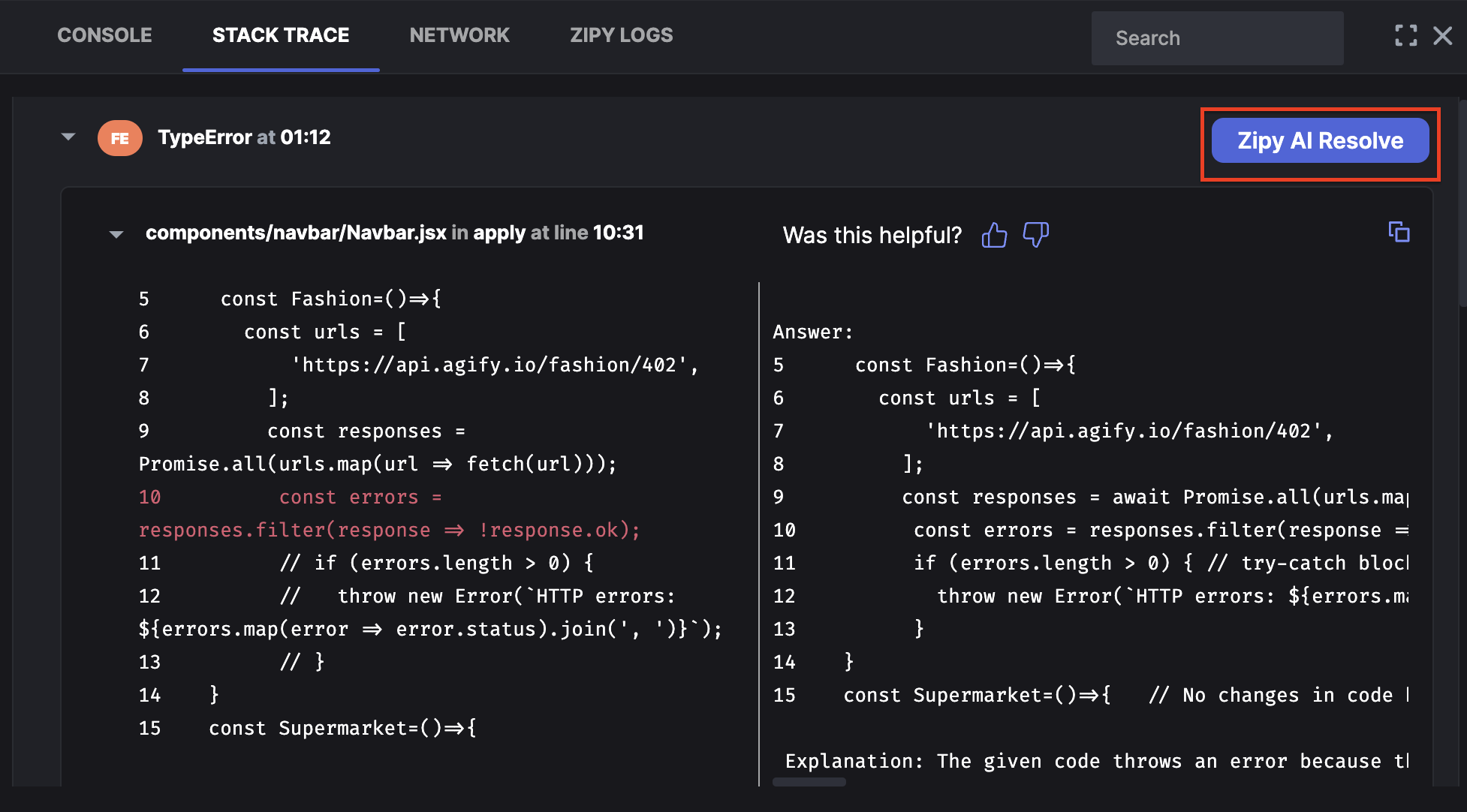
## Zipy AI Resolve
Zipy plug and play supports AI Resolve feature powered by [**OpenAI**](https://openai.com/)**,** that suggests fixes for all the frontend and java script errors in your web application. Note that to get a more precise suggestion of the fix, you need to provide the source map to Zipy. Accessing the source code would help Zipy AI Resolve feature to provide more accurate fixes. You can read this [source map](https://docs.zipy.ai/configure/source-maps) related documentation to understand on how to upload the source maps
## Trouble shooting & Constraints
Zipy plug and play extension throws up the below message whenever the extension is reloaded or the page in which you are triggering a record is downloaded before the extension is installed. Reloading the page again will ensure that you can record the session
Page refresh message
Zipy plug and play extension shall stop the session recording if you navigate from one domain into a different domain on the same tab. Refresh page and restart the recording
Zipy plug and play extension shall record the sessions for a maximum of 5 mins.
Zipy plug and play shall not record the videos present inside any website
# Zipy Recording Control
Zipy allows you to record user sessions by capturing screen activity and interactions. For privacy or security reasons, you may need to stop the recording on specific routes, such as during checkout or while viewing sensitive data.
### Stop Recording
The `zipy.record.stop()` function can be used to stop recording based on user actions or route changes. However, note that this stop functionality does not persist across page refreshes. On refresh a new session is created.
**Example: Stop Recording on /checkout Route**
To prevent recording on sensitive routes like /checkout, stop the recording as soon as the user navigates to that route:
```
if (currentRoute === "/checkout") {
zipy.record.stop();
}
```
Once called, the recording stops for the current session. However, if the page is refreshed, a new session will be created.
### Start Recording
To resume recording, reinitialize the Zipy SDK, which creates a new session for the same user:
```
zipy.init(""); // Starts a new session and resumes recording
```
#### **Important Note:**
**Page refresh:** On a page refresh, the stop functionality does not persist, and a new session will automatically begin.
# Release Version
How can I capture the release version of my application for the captured session replay?
You can capture the release version of your application using the **zipy.init()** method with options.
Initialise Zipy with your Project SDK key and begin recording the session replay. The release version will be captured as part of this.
**zipy.init(**YOUR\_PROJECT\_SDK\_KEY**,** options**)**
Following are the Method Parameters:
| **Name** | **Description** |
| -------- | ----------------------------------------------------------------------------------------------- |
| sdk\_key | Your project SDK key |
| options | A JSON object which specifies optional parameters to initialize your recording with. (Optional) |
The option to be used with this method is described below:
* **releaseVer** - String
This specifies a release version for your project making it easier for you to identify which release version of your project was used when your session was recorded or your error was captured.
Example Usage:
```generic
zipy.init("YOUR_PROJECT_SDK_KEY", {
releaseVer: "0.1.0"
});
```
# Identifying Users
How do I identify my users or customers using Zipy?
To identify **users you will need to additionally call zipy.identify(uuid, {userInfo}).** This will help you identify the users of your application by associating your own unique identifier with their activity. This method should typically be called when your users identify themselves by signing in to your application.
**Example Usage:**
{% tabs %}
{% tab title="Installed Zipy using Script Tag" %}
**In case you choose to install Zipy in your app** with the script tag method, you would first need to include a two line JavaScript SDK provided by Zipy in the \\ section of your web app.
```generic
```
After installing Zipy with the script tag, you can associate the recorded sessions with a unique identifier and information of your users. You can do so by adding the following code in your login module or any other source file where your users get successfully authenticated into your application. Given below is an example usage in the code:
```javascript
window.zipy.identify("cbrandon@brands.com", {
firstName: "Charles",
lastName: "Brandon",
email: "cbrandon@brands.com",
customerName: "Brands LLC",
age: "34"
});
```
To anonymize a previously identified user of your application, use the following code in a source file where users sign out of your application:
window.zipy.anonymize()
{% endtab %}
{% tab title="Installed Zipy using NPM" %}
**In case you choose to install Zipy in your app with the npm method, you would need to install zipy module in the app project as a first step:**
```generic
npm i zipyai
```
Then import zipy module and initialize in your \_app.js or any other source file:
```generic
import zipy from "zipyai";
zipy.init("YOUR_PROJECT_SDK_KEY");
```
After integrating Zipy using npm, you can associate the recorded sessions in Zipy with a unique identifier and information of your users. You can do so by adding the following code in your login module or any other source file where your users get successfully authenticated into your application. Given below is an example usage in the code:
```javascript
import zipy from "zipyai";
zipy.identify("cbrandon@brands.com", {
firstName: "Charles",
lastName: "Brandon",
email: "cbrandon@brands.com"",
customerName: "Brands LLC",
age: "34"
});
```
To anonymize or disassociate a previously identified user of your application from the session, use the following code in a source file where the user signs out of your application:
```generic
import zipy from “zipyai”;
zipy.anonymize();
```
{% endtab %}
{% endtabs %}
**The** `uuid` **sent to Zipy can be viewed in the Session Replays list in the user column, as shown in the image below:**
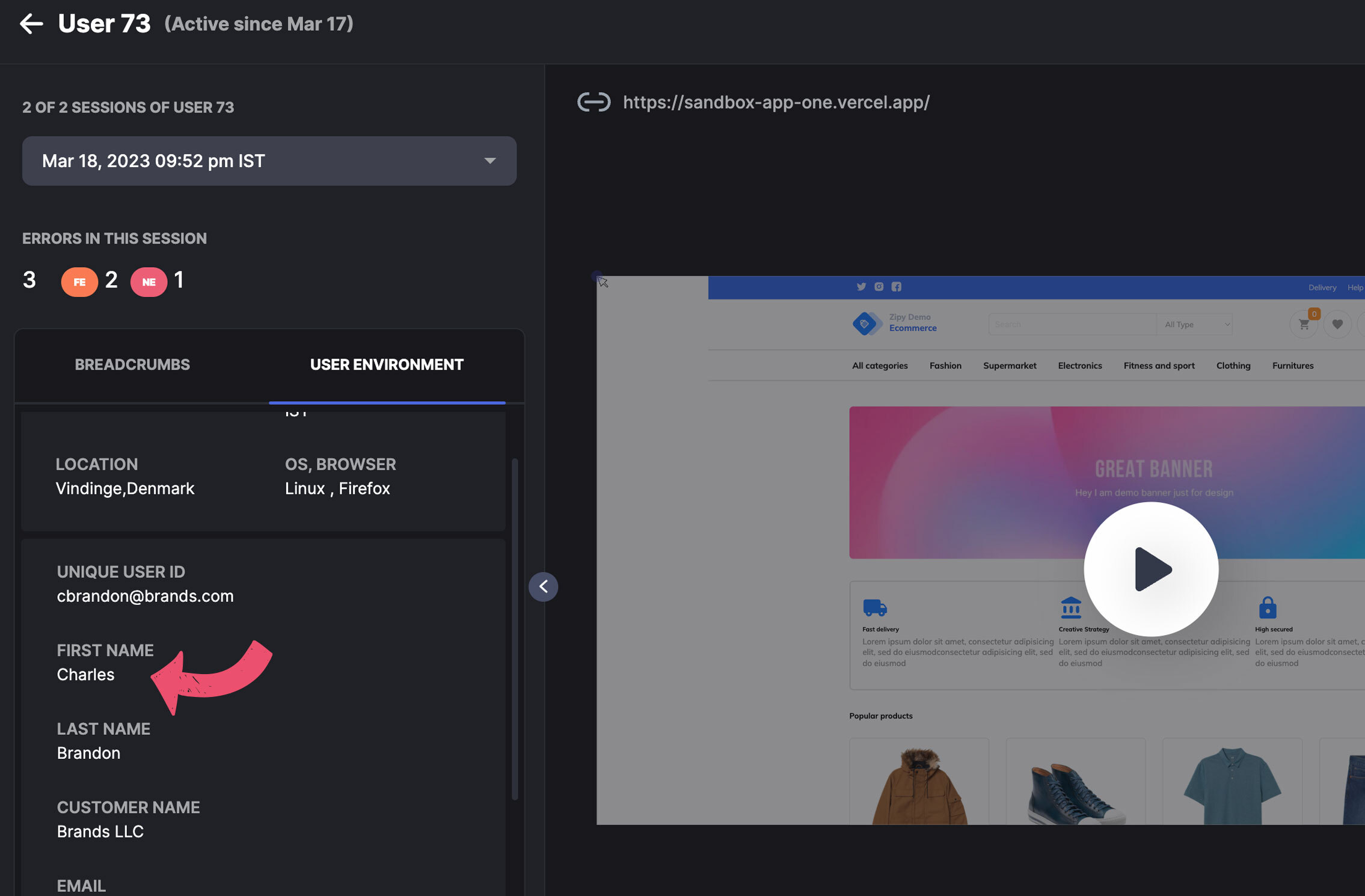
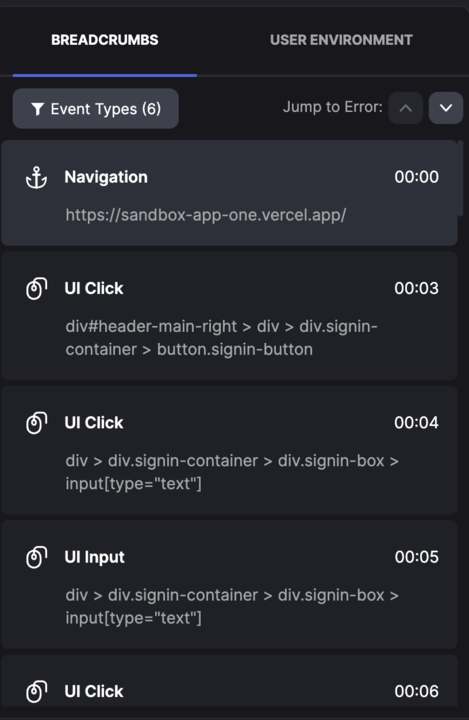
The **userInfo** sent to Zipy can be viewed in the User Environment details in each session replay**, as shown in the image below:**
zipy.identify(uid, {userInfo})
Following are the Method Parameters:
| Name | Description |
| -------- | ---------------------------------------------------------------------------------------------------------------------------------------------------------------------------------- |
| uuid | A string denoting your unique identifier for your user. Examples of unique identifiers could be UUID, email ID, full name or any other string that uniquely identifies your users. |
| userInfo | A JSON object which specifies additional details about your user. (Optional) |
In addition to the unique identifier sent via **uid**, the userInfo parameter is a JSON object supporting the key/value pairs mentioned below. You can choose to include one or more of the following information in your userInfo parameter:
* **firstName** - String
* **lastName** - String
* **email** - String
* **customerName** - String
* **avatar** - String
* **phone** - String
* **age** - String
Zipy now supports two kinds of identifiers - predefined and custom identifiers. [You can read more about custom identifiers here.](https://docs.zipy.ai/configure/adding-custom-identifiers)
**Previously identified users of your application can be anonymized by calling the zipy.anonymize()** m**ethod. This will automatically split the session and associate the new session with a new anonymous user which Zipy will identify with its own identification. This method should typically be called when users sign out of your application.**
# Adding Custom Identifiers
How do I add custom identifiers when using zipy.identify()?
To identify users, we provide you with the **zipy.identify()** function in our SDK. [You can read more about this here](https://docs.zipy.ai/configure/identifying-users). Zipy now supports two kinds of identifiers - predefined and custom identifiers.
**Predefined identifiers**
You can use one or more of the following predefined identifiers when you call zipy.identify():
* **firstName** - String
* **lastName** - String
* **email** - String
* **customerName** - String
* **avatar** - String
* **phone** - String
* **age** - String
**Custom identifiers**
We allow a maximum of 10 custom identifiers per project which can be created as per your use-case. To use custom identifiers, you can add them to the existing userInfo JSON in Zipy’s identify method:
zipy.identify(uid, \[userInfo])
**Example Usage:**
To uniquely identify your users with Zipy using your own custom identifiers e.g. “city”, “state” & “country”, update your existing zipy.identify method as given below:
```javascript
window.zipy.identify("jdoe@yourcompany.com", {
firstName: "John",
lastName: "Doe",
email: "jdoe@yourcompany.com",
customerName: "Your Company",
age: "34",
city: "Los Angeles",
state: "California",
country: "United States of America"
});
```
In case your custom identifier key has a special character (space, - , \_ etc), please quote the key within double quotes inside the JSON e.g.:
```javascript
"emp_city": "Los Angeles"
```
This **userInfo** including the custom identifiers will be captured by Zipy and can be viewed in the User Environment details in each user session, as shown in the image below:

The custom identifiers can also be used to filter your sessions & errors.
**In case you want to add your own custom identifiers in addition to the identifiers we have defined for you, please raise a support ticket with the list of custom identifier names for your project so that we can add them for you. Alternatively, you can use the chat widget in the Zipy application for the required support.**
# Anonymize Users
How do I anonymize my previously identified users?
**Previously identified users of your application can be anonymized by calling zipy.anonymize()** m**ethod. This will automatically split the session and associate the new session with a new anonymous user which Zipy will identify with its own identification. This method should typically be called when users sign out of your application.**
**Example Usage:**
**1. Usage after installing Zipy via the script tag method:**
In case you chose to install Zipy in your app with the script tag method, to anonymize a previously identified user of your application, use the following code in a source file where users sign out of your application:
window.zipy.anonymize()
**2. Usage after installing Zipy via the npm method:**
In case you chose to install Zipy in your app with the npm method, to anonymize a previously identified user of your application, use the following code in a source file where users sign out of your application:
```generic
import zipy from "zipyai";
zipy.anonymize();
```
# Session URL Retrieval
Retrieve and utilize the current session URL dynamically with Zipy's getCurrentSessionUrl function.
The `getCurrentSessionURL` function lets you capture a shareable link to the current Zipy session. By default, it returns the standard session URL. You can also include a timestamp, which links directly to the exact moment in the session when the function was called.
**Note:** If you don’t pass any option, `withCurrentTimestamp` defaults to `false` (regular session URL).
***
#### Using NPM
```javascript
// Regular session URL
const url = zipy.getCurrentSessionURL();
console.log('Session URL:', url);
// Session URL with timestamp
const urlWithTime = zipy.getCurrentSessionURL({ withCurrentTimestamp: true });
console.log('Session URL with timestamp:', urlWithTime);
```
***
#### Using Script Tag
✨ **Tip:** Use the timestamp option when you want to share the *exact activity point* in a session with your team.
# Source Maps
How can I upload JavaScript Source Maps via Zipy CLI?
Zipy CLI helps in debugging the minified stack trace that occurs on the user's browser environment. The minified stack trace can be parsed, so that you can see the actual source code with the help of source maps. This lets you view the actual source context of the frontend JavaScript errors, including the code from any other libraries that you may have used in your frontend code.\
\
**How to enable this feature?**\
You will have to upload the source maps to Zipy Server with the help of the [CLI](https://www.npmjs.com/package/zipy-cli). The package can be globally installed and integrated in the build steps for smoother integration. Following are the steps to upload the source map files:
// Globally Install the CLI Package -
```html
npm i -g zipy-cli
```
// CLI Command -
```
zipy-cli --authKey authKey --dirname ~/sourcemaps/ --apiKey YOUR_PROJECT_SDK_KEY --releaseVer releaseVerString
```
// CLI help Command -
```
zipy-cli --help
```
\
**Below are the params accepted by the CLI:**
* authKey: It is an authentication key for your Zipy projects.
* dirname: A string value of the directory where source maps are available
* apiKey: Zipy Project Key
* releaseVer: Release Version of your application
Please contact Zipy via chat or send us an email at to get an authorization key for access. Note that you can upload only up to 100 and a maximum of 100 MB files at once.
#### Controlling log output
The CLI supports a `-v` or `--verbose` flag that enables detailed file upload output.\
Without this flag, only minimal logs are shown in the terminal.\
With this flag, the CLI prints detailed filenames and progress information during sourcemap uploads.
Example
```
zipy-cli --authKey authKey --dirname ~/sourcemaps/ --apiKey YOUR_PROJECT_SDK_KEY --releaseVer releaseVerString --verbose
```
\
**Why can't I see the proper stack trace?**
If you are unable to see the proper stack trace in your Zipy dev tools section, please verify the following:
1. Check if you initialized the SDK with a proper release version. Make sure the release version for which the sourcemaps have been uploaded matches with SDK init release version.
2. Confirm if you uploaded all the source map files. Stack traces can be broken if some source map files are missing.
# Blocking PII data
How can I block my sensitive data on Zipy?
Zipy allows you to block your sensitive data using the **zipy-block** class.
**\
Sample div\
**
**Example Usage:**
```html
```
# Ignoring Errors/Noise
Which are the errors ignored by Zipy by default, in order to reduce noise in my project?
We understand how important it is for you to get to the critical errors in your application on priority without having to surf through the unimportant or irrelevant ones.
Hence, by default, we do not capture errors and events from 3rd party APIs to reduce noise. Below is the list of patterns set up for your projects, from which errors are ignored. If you require errors or events to flow in from any of the below tools/APIs, please raise a [support ticket here](https://zipy.freshdesk.com/support/tickets/new) or use the chat widget in the Zipy application.
| mixpanel.com |
| ---------------------------------------------------------------------------- |
| hotjar |
| [smartlook.com](http://smartlook.com/) |
| [newrelic.com](http://newrelic.com/) |
| bugsnag |
| fullstory |
| [sentry.io](http://sentry.io/) |
| [google-analytics.com](http://google-analytics.com/) |
| [bam.nr-data.net](http://bam.nr-data.net/) |
| [wistia.com](http://wistia.com/) |
| [amplitude.com](http://amplitude.com/) |
| [segment.io](http://segment.io/) |
| [pendo.io](http://pendo.io/) |
| raygun |
| smartlook.cloud |
| [segment.com](http://segment.com/) |
| [visualstudio.com](https://visualstudio.com/) |
| [agora.io](http://agora.io/) |
| [agoraio.cn](http://agoraio.cn/) |
| [kinesis.ap-south-1.amazonaws.com](http://kinesis.ap-south-1.amazonaws.com/) |
| /tstagmanager/triggers/scripts |
| [stats.g.doubleclick.net](http://stats.g.doubleclick.net/) |
| adsbygoogle |
| [pagead2.googlesyndication.com](http://pagead2.googlesyndication.com/) |
**In addition to these, if you want Zipy to ignore errors from any additional URL/Text patterns, you can add those patterns in** [**Error Settings**](https://app.zipy.ai/abc/00/error-settings) **of your project.**
# npm Update
Why is my Zipy SDK npm not getting updated and how do I resolve it?
If your Zipy SDK npm is not getting updated to the latest version every time you build your web app, it could most likely be due to the following reasons:
1. Missing “^” icon for the zipyai npm dependency in your package.json file.
Please make sure that there is an “^” icon for the dependency. This will ensure that the latest version of npm is downloaded.
For example, the below snippet from package.json will ensure that the 1.X.Y version getting used is the latest version.
```html
"dependencies": {
..other dependencies
"zipyai": "^1.0.0"
}
```
2. Uncommitted package-lock or yarn-lock file in your workspace.
For every new version of npm, also make sure that the package-lock or yarn-lock file is updated with the latest version and committed into your version control. This is required because the package-lock json file eventually determines which version of npm is downloaded on the npm/yarn install.
To understand more about package-lock.json, please take a look at the following short video:
{% embed url="" %}
# Support Integration
How to include Zipy Session Replay links in the support tickets my customers create?
You can now capture and include a Zipy session URL in any ticket raised by your end users from inside your application where Zipy is integrated. It is as simple as calling a Javascript function **getCurrentSessionURL.** \
\
This function can be called from any page of the application where Zipy is active and will return the ongoing Zipy session URL of that user. On the form submission, when your users create tickets from inside your application, the same Zipy link can be sent to your support desk/chat client. This will enable your support team to access the Zipy sessions of the users, in the corresponding issues reported by them.
### Synchronous Method
```javascript
const sessionUrl = window.zipy.getCurrentSessionURL();
/* You can send this URL in an email/chat that is sent on form submission. */
```
**Example Usage:**
```javascript
const handleLogin = (data) => {
let sessionURL = window.zipy.getCurrentSessionURL();
console.log("sessionURL", sessionURL);
setLoading(true);
};
```
### Asynchronous Method
For scenarios where you need to fetch the session URL asynchronously, such as when performing other operations before accessing the session URL, you can use the asynchronous version of the function, getCurrentSessionURLAsync.
```javascript
window.zipy.getCurrentSessionURLAsync().then((sessionUrl) => {
console.log("Session URL: ", sessionUrl);
// Use this URL in form submission or send it to your support desk.
});
```
**Example Usage:**
```javascript
const handleLogin = (data) => {
window.zipy.getCurrentSessionURLAsync().then((sessionURL) => {
console.log("sessionURL", sessionURL);
setLoading(true);
// Now, send this session URL along with login details or include it in the support ticket
});
};
```
# Session Stitching (rootDomain)
Using this parameter, you can specify whether or not sessions between the subdomains of your site should be split up into individual sessions for each subdomain. Set this to the highest level hostname that sessions should be shared over ((e.g. example.com or shared.example.com). If you want a distinct session for each subdomain, leave it unspecified.
```javascript
window.zipy.init('YOUR_PROJECT_SDK_KEY', {
rootDomain: 'example.com'
});
```
# Changelog
# Zipy Web SDK (Script)
This page covers script SDK releases from version 1.0.48 onwards.
### SDK 1.0.58 (10-12-2025)
* Fixed an issue that could cause proxy-based network requests to fail.
* Improved reliability of network request handling.
***
### SDK 1.0.57 (09-12-2025)
* Performance improvements through background data encoding and compression.
***
### SDK 1.0.56 (07-10-2025)
* More consistent and reliable session replays.
* Improved detection of user frustration signals.
***
### SDK 1.0.55 (04-08-2025)
* Improved error handling to reduce noise from invalid or empty error events.
***
### SDK 1.0.54 (17-07-2025)
* Stability improvements to reduce unnecessary processing.
* Improved performance and memory usage under high load.
***
### SDK 1.0.53 (07-07-2025)
* Security improvements and dependency updates.
* Improved validation to prevent unnecessary data transmission in invalid configurations.
***
### SDK 1.0.51 (22-05-2025)
* Enhanced session initialization to reliably capture session ID and user details.
* Improved availability of session URLs during active sessions.
***
### SDK 1.0.50 (16-01-2025)
* Improved response capturing for network requests using specific response type configurations.
***
### SDK 1.0.49 (07-01-2025)
* Fixed an issue where network event timestamps were recorded at request completion instead of request start.
* Network events, breadcrumbs, and DevTools timelines now reflect accurate request start times.
***
### SDK 1.0.48 (02-01-2025)
* Improved handling of network requests to ensure more reliable network instrumentation.
# Zipy Web SDK (NPM)
This page covers NPM SDK releases from version 1.0.36 onwards.
### (NPM) 1.7.44 (22-12-2025)
* Fixed an issue that could cause proxy-based network requests to fail.
* Improved reliability of network request handling.
* Performance improvements through background data encoding and compression.
***
### (NPM) 1.7.43 (08-10-2025)
* Improved detection of user frustration signals.
* More consistent and reliable session replays.
* Improved handling of network retries under unstable network conditions.
***
### (NPM) 1.7.42 (04-08-2025)
* Improved error handling to reduce noise from invalid or empty error events.
***
### (NPM) 1.7.41 (17-07-2025)
* Stability improvements to reduce unnecessary processing.
* Improved performance and memory usage under high load.
***
### (NPM) 1.7.40 (07-07-2025)
* Security improvements and dependency updates.
* Improved validation to prevent unnecessary data transmission in invalid configurations.
***
### (NPM) 1.7.39 (23-05-2025)
* Enhanced session initialization to reliably capture session ID and user details.
* Improved availability of session URLs during active sessions.
* Improved response capturing for network requests using specific response type configurations.
***
### (NPM) 1.7.37 (08-01-2025)
* Fixed an issue where network event timestamps were recorded at request completion instead of request start.
* Network events, breadcrumbs, and DevTools timelines now reflect accurate request start times.
***
### (NPM) 1.7.36 (06-01-2025)
* Improved handling of network requests to ensure more reliable network instrumentation.
# Oopsie AI Agent
### What is Oopsie AI?
Oopsie AI identifies and highlights errors that directly affected what users saw or experienced in your product. This AI Agent watches all sessions and errors in real time and bubbles up the important customer experience problems.
It filters out background or non-impacting technical errors and focuses only on those that visibly disrupted the user’s experience.
\
When an error impacts a user, Oopsie AI uses DOM and event data to show how the error appeared on screen and what the user was doing at that moment.\
This helps teams understand the real user impact of every issue — not just the code failure.
### Example Visuals
Example 1: Login Error
* Reconstructed Screen:
Example 2: Cart Error
* Reconstructed Screen:
***
### Why It Matters
Most error logs show what failed.\
Oopsie AI shows which failures actually mattered to users.
By surfacing only user-impacting errors, Oopsie AI helps you:
* Prioritize issues that visibly affected users
* Understand the user’s screen context at the time of error
* Fix problems that truly impact user experience
***
### Access Oopsie AI
1. Go to your Zipy Dashboard → Oopsie AI.
2. Browse recent AI-generated error visuals.
3. Click any image to view the session replay and understand the root cause instantly.
Please reach out to support for any further questions.
# Session Replay
Viewing User Journeys Via Session Replays
Session replay is a powerful way to view all your user journeys through session replay. You can filter all session replay by multiple parameters like time, user email, name, city, country, browser, OS etc.
By default the Session Replay are sorted by latest session first. You can sort the sessions by user data, session size and environment.
Live Session Replays can also be viewed as real time sessions are captured by Zipy.
Clicking on a given session replay will playback the complete session. The Zipy User Session Player will show the following data
1. Complete Session Replay
2. Timeline with Inactivity and Errors. Option to skip inactivity, fast forward and different playback speeds.
3. Breadcrumbs of all User events, including click events, network data, console logs and errors.
4. Dev Tools which will have console logs, network logs, stack traces and custom logs if any
5. User Environment details like OS, browser version etc,
# Errors
Viewing All Errors for All Users
Error is a powerful way to view all your errors combined across users. There are two primary categories of errors that are captured by Zipy :
1. Frontend Errors
2. API Errors
By default the errors are sorted by latest error first. You can sort the errors by total sessions, count of all errors, OS, browser and time when it occurred.
Clicking on a given error will playback the latest session where the error occurred. The Zipy Error Session Player will show the following data
1. The complete session playback
2. Exact point on timeline where the error occurred
3. Breadcrumbs will also show the exact error detail
4. Dev Tools will contain the error information details. This could be stack trace, console errors, API errors and exception captured via Zipy logs.
5. User environment details
6. All user session where the given error was detected
The following actions can be taken inside an error session screen
1. Share the session URL with your team members with exact timestamp
2. Create a JIRA ticket with auto filled details
3. Link a JIRA ticket with auto filled details
# Funnels
Optimizing Conversion Rates via Funnel Tracking
Funnels helps you understand how users move through your application by tracking their journey across multiple steps. It shows you where users drop off and helps you optimize your user experience.
### How to Create a Funnel
#### Step 1: Define Your Funnel Steps
You can create funnels with 2 or more steps. Each step can be one of these 4 types:
### Step Types
#### 1. Page Visit URL
Track when users visit specific pages
**Example:** `sign-up`, `checkout`, `thank-you`\
**Use case:** Track page-to-page navigation
#### 2. Clicked Element Name
Track when users click specific buttons or elements
**Example:** `submit-button`, `add-to-cart`, `download-now`\
**Use case:** Track button clicks and interactions
#### 3. CSS Selector
Track interactions with specific CSS elements
**Example:** `.form-input`, `#login-button`, `.product-card`\
**Use case:** Track form interactions or specific UI elements
#### 4. Custom Events
Track [custom events](https://docs.zipy.ai/product-features/custom-events) you've defined in your application
**Example:** `registration_completed`, `purchase_made`, `video_watched`\
**Use case:** Track business-specific actions
***
#### Step 2: Configure Analysis Settings
### Dropdown Options
#### Session Scope
Choose how to analyze user behavior:
**Single Session:** Only count users who completed all steps within one session
**Across Sessions:** Count users who completed steps across multiple sessions (more flexible)
#### User Counting
Choose how to count users:
**Unique Users:** Count each user only once (recommended for most analyses)
**Total Users:** Count all user interactions (includes repeat visits)
***
### Example Funnels
#### User Registration Funnel
1. Page Visit URL = ""
2. Clicked Element Name = "Sign up with work email"
3. Page Visit URL = ""
4. Custom Event = "registration\_completed"
***
### Understanding Your Results
#### Funnel Visualization
Your funnel results will show:
**Example Results**
* **Step 1:** 1,000 users visited the landing page
* **Step 2:** 800 users clicked the CTA button (20% drop-off)
* **Step 3:** 600 users filled out the form (25% drop-off)
* **Step 4:** 400 users completed the process (33% drop-off)
#### Key Metrics
* **User Count:** Number of users who completed each step
* **Drop-off Rate:** Percentage of users who left at each step
* **Conversion Rate:** Percentage of users who completed the entire funnel
***
### Best Practices
#### 1. Start Simple
Begin with 2-3 step funnels to understand basic user flow
#### 2. Choose the Right Step Types
* Use **Page Visit URL** for page navigation
* Use **Clicked Element Name** for button interactions
* Use **CSS Selector** for form interactions
* Use **Custom Events** for business actions
#### 3. Session Scope Guidelines
* **Single Session:** Use for short, immediate processes (checkout, signup)
* **Across Sessions:** Use for longer processes (product research, onboarding)
#### 4. User Counting Guidelines
* **Unique Users:** Use for conversion analysis and drop-off rates
* **Total Users:** Use for engagement analysis and repeat behavior
#### 5. Step Naming
Give each step a clear, descriptive name:
✅ **Good:** "Add to Cart", "Checkout Page", "Purchase Completed"
⚠️ **Avoid:** "Step 1", "Button Click", "Page Visit"
***
### Common Use Cases
1. **E-commerce Optimization**\
Track the complete purchase journey from product view to order completion
2. **User Onboarding**\
Monitor how new users progress through your onboarding flow
3. **Lead Generation**\
Analyze how visitors convert from landing page to qualified leads
4. **Feature Adoption**\
Track how users discover and start using new features
***
### Troubleshooting
#### No Data Showing?
* Check that your step values match exactly what's in your application
* Verify the date range includes when the events occurred
* Ensure the customer ID is correct
#### Unexpected Drop-offs?
* Check if the step values are case-sensitive
* Verify that the events are actually being tracked
* Consider if users might be completing steps in different sessions
#### Low Conversion Rates?
* Analyze each step to identify bottlenecks
* Consider if the funnel steps are too complex
* Check if users are completing the process through alternative paths
***
### Let's Get Started
1. **Identify your key user journey** (e.g., signup, purchase, feature adoption)
2. **Map out the steps** users need to complete
3. **Choose appropriate step types** for each action
4. **Set your analysis preferences** (session scope, user counting)
5. **Create your funnel** and start analyzing!
***
#### Need Help?
If you need assistance creating or analyzing funnels, contact the Zipy support team (). We're here to help you get the most out of your user analytics!
# API Performance
Use API Performance to monitor, analyze and get insights about your website's API performance
Zipy's API Performance helps you to monitor, analyze and quickly fix your API's performance issues.
Zipy provides you with not just analytics, but in-depth insights at multiple levels.
### Overall API Performance and Health
You can see Insights and Analytics for your web application's overall API health by checking the graphs, diagnostics and API lists at the entire application level.
Insights give you a quick overview of your web application's APIs most important metrics like API latency, API failures and the impact of the API failures on your users.
You can also see detailed API Performance Diagnostics based on how your APIs are performing with recommendations on how to fix them.
Analytics provide you charts & graphs for various API performance metrics like API Latency, Network Timing Split, API Failures by Latency, API Failures by Geography etc.
### Individual API Performance and Health
API Performance also allows you to dig to a particular API and get Insights and Analytics relevant to that API.
You can check detailed graphs, diagnostics and session recordings for every individual API. You can choose a time filter to check data over the time interval that you wish to focus on.
You can dig deeper into each session that may have slow performing or failing API(s) to check the user journey or to collect more information about each API call in the session.
Use the Network tab in Dev Tools to check more details like API response, API response size, Network timings split and even request & response payload (if enabled).
### Resource timing and CORS
Zipy uses the [Resource Timing API](https://developer.mozilla.org/en-US/docs/Web/API/Performance_API/Resource_timing) to retrieve information about the timing of various resources loaded by a web application. However, it is restricted by the cross-origin security policies enforced by browsers. By default, only resources loaded from the same origin as the web application are accessible for timing information.
To overcome this limitation, you can enable extended data collection for cross-origin resources subject to Cross-Origin Resource Sharing (CORS). This can be achieved by including the "Timing-Allow-Origin" HTTP response header in your cross-origin resources. For instance, you can grant access to resource timing for any origin by setting the header value to "Timing-Allow-Origin: \*". Additional details about CORS can be found in the [MDN Web Docs](https://developer.mozilla.org/en-US/docs/Web/API/Performance_API/Resource_timing#cross-origin_timing_information).
# Page Performance
Zipy captures all important web vitals related to the performance of a page from your application.
Find the various important aspects of page performance like FCP, FP, LCP, FID, Load time, CLS.
### FCP, FP, LCP
1. **First Contentful Paint (FCP)**:
FCP measures the time from when the page starts loading to when any part of the page's content is rendered on the screen. It indicates how quickly users can begin to consume content.
2. **First Paint (FP)**:
FP marks the time when the first pixel is rendered on the screen, signaling the start of the page loading process. It provides an initial indication of load performance.
3. **Largest Contentful Paint (LCP)**:
LCP measures the time from when the page starts loading to when the largest text block or image element is fully rendered within the viewport. It reflects the perceived load speed of the main content.
### FID
FID quantifies the delay between the user's first interaction with a page (e.g., clicking a button) and the browser's response to that interaction. It is a key metric for measuring responsiveness and interactivity.
### **Load Time**
Load time is the total duration from the start of the page load to the completion of all elements on the page. It determines how quickly users can fully interact with the page's content.
### CLS
CLS measures the total of all individual layout shift scores for unexpected layout shifts that occur during the entire lifespan of the page. It helps assess the visual stability of a webpage and reduces user frustration from content shifting unexpectedly.
# Heatmaps
Understand which page drives the most engagement, where they don't interact and how much they scroll.
Get the exact number of clicks on a given page for different parts of the page.
### Rage Clicks
Detect poor user experience across app or website pages with rageclicks detected by Zipy heatmap software.
### Dead Clicks
Use Zipy heatmap software to identify dead clicks and gain insights into user frustrations that could potentially result in drop-offs, thereby improving the usability of your application.
# Alerts
Stay one step ahead of bugs, spikes, and user-flow issues.
Zipy watches every session in real time. **Alerts that turn raw stream into actionable pings** so the right person can jump in on the issue. Choose your channel—Slack, Email, Web-hooks and get notified the moment something goes wrong.
### Which alert is right for you?
| Alert Type | Why you’d use it | What it can fire on |
| ------------------------------------------------------------------------------- | ------------------------------------------------------------------------- | ---------------------------------------------------------------------------- |
| [**Slack Alerts**](https://docs.zipy.ai/product-features/alerts/slack-alerts) | Instant visibility for engineering & on-call |
• Daily or Weekly Digest • Every new error • Error-rate surge
|
| [**Email Alerts**](https://docs.zipy.ai/product-features/alerts/email-alerts) | Keep cross-functional teams (PM, CS, execs) in the loop |
• Daily or Weekly Digest • Every new error • Anomaly detection
|
| [**Live Alerts**](https://docs.zipy.ai/product-features/alerts/live-alerts) | Real-time, user-specific nudges while people are on your site | Any custom event you emit—e.g. live visit, pricing-page view, signup failure |
| [**Custom Alerts**](https://docs.zipy.ai/product-features/alerts/custom-alerts) | Laser-focused rules with filters, frequencies, and multi-channel delivery | Any metric or error plus filters on browser, OS, URL, release, etc. |
# Slack Alerts
Setting Slack Alerts in Zipy
Integrate with Slack easily to enable proactive alerting on slack channel.
The following slack alerts can be currently configured in Zipy
1. Daily Digest Alert
2. Weekly Digest Alert
3. New Error Alert
4. Surge Alert
# Email Alerts
Setting Email Alerts in Zipy
Get proactive alerting on your email. These can be easily enabled or disabled in the Alert Settings.
The following email alerts can be currently configured in Zipy
1. Daily Digest Alert
2. Weekly Digest Alert
3. New Error Alert
4. Anomaly Detection
# Live Alerts
### Overview
\
Zipy provides you the ability to send custom alerts to your desired Slack channel to track and take quick actions on the activities being performed by the users on your application. You can now send real time alerts for example: alert on a live user visit on your platform, or user landing on your pricing page, or a sign-up failure for a user. This gives you the control to be alerted whenever you want to be and act and communicate with your users faster and while they are there on the platform.
### **Function Signature**
function sendAlertOnSlack(title, message)
#### **Parameters**
* title (String): The title of the alert.
* message (String): The detailed alert message.
**Here’s a basic example to get started:**
```javascript
const title = "Payment Failure Alert";
const message = "Payment failed for John Doe User";
zipy.sendAlertOnSlack(title, message);
```
**Special Case Handling**
If you want to add quoted text eg a name in the message as shown below, you need to use single quotes.
```javascript
const title = "Payment Failure Alert";
const message = "Payment failed for 'John Doe' User";
zipy.sendAlertOnSlack(title, message);
```
**Note**: Backslashing double quotes in the message is not supported. eg. Below will not work as a message.
```javascript
const title = "Payment Failure Alert";
const message = "Payment failed for \"John Doe\" User";
zipy.sendAlertOnSlack(title, message);
```
Below is an example of how the Slack alert will appear when using the sendAlertOnSlack function. The title "Payment Failure Alert", is followed by the message "Payment failed for 'John Doe' User". This is a sample alert to demonstrate how notifications are formatted and displayed in Slack.
### Slack Integration Steps:
\
To get the alert on Slack, [integrate slack with Zipy](https://docs.zipy.ai/product-features/alerts/slack-alerts).\
Select a slack workspace and channel where you want to send an alert.\
Uncheck all the alerts to get the live Alerts from the above function.
# Custom Alerts
Custom Alerts in Zipy help you stay on top of application errors by automatically notifying your team when predefined error conditions occur. These alerts are fully customizable using error-specific conditions and filters, allowing you to take immediate action and reduce issue resolution time.
### **Key Features**
* **Real-Time Notifications**: Get alerted as soon as the condition is met.
* **Custom Filters**: Fine-tune alerts using environment, platform, and error message filters.
* **Multiple Channels**: Send alerts via Slack, Email, or Webhooks.
* **Configurable Severity**: Set priority levels (Info, Warning, Critical) to match your workflow.
### **How It Works**
1. **Navigate to Custom Alerts**
2. **Define Alert Conditions**\
Choose the condition from the list and set your value and interval based on your requirement
3. **Define the filters**
Customize your alert using Zipy filters (Browser, Error Category, Error Context, Error Type, Navigation URL, OS, and Release Version). It also supports multiple filter combinations.
4. **Configure Notification Settings**
Select channels (Email, Slack, Webhook, and Roles - Invited users in Zipy Project)
5. **Set Frequency (Optional)**
You can define the frequency of alerts triggered to reduce the noise of alerts being sent.
6. **Save and Activate**\
Once activated, Zipy will continuously monitor incoming sessions and trigger alerts as per the defined conditions.
**Note:**
* Alerts are triggered only for the upcoming data from the point of activation.
* You will be able to update any conditions set live anytime, and the new changes will be reflected for the upcoming sessions.
* To activate alerts for your account, contact us at or through the in-app chat support.
# Analytics
Error and User Behaviour Analytics to solve for digital experiences
**Zipy provides an out of box analytics dashboard with two primary sections.**
1. Error Metrics
2. Usage Metrics
**The error dashboard contains the following charts**
1. Error Trend
2. Errors by Category
3. Errors by URL
4. Top API Errors
5. Errors by Customers (Identify should be implemented for this chart). See Documentation.
6. Errors by Users (Identify should be implemented for this chart). See Documentation.
7. Errors by Types
8. Errors by Browsers
9. Frontend Error Distribution
10. API Error Distribution
**The usage metrics contain the following charts**
1. DAU/WAU/MAU
2. User Sessions by Customers
3. User Sessions Trend Line
4. User Sessions by Location
5. User Sessions by Browser
# Custom Events
Zipy provides a way for customers to attach custom events and properties to their session replays via the logEvent function. These custom events help with enhancing insights on user journeys, highlighting important business events, and building custom analytics. The session data can also be filtered based on the custom events for focused analysis.
To log custom events based on any business logic, clicks or page visits, use the following method after initializing Zipy
```
window.zipy.logEvent('', {
'': '',
'': '',
'': ''
});
```
Here is an example:
```javascript
window.zipy.logEvent('Payment_successful', {
plan: "enterprise",
payment_mode: "card"
});
```
* Custom events allow you to track specific user actions or behaviors that are unique to your application and business logic.
* You can instrument events for actions such as button clicks, form submissions, page navigation, errors, or any other user interactions that are important for your analysis.
* This enables you to visualize and analyze the entire user experience from start to finish and get to important segments in user journeys faster.
There are a few limitations to consider when specifying properties for Custom Events:
* Event names and Property names are strings that should be under 250 characters
* Maximum of 5 properties can be set per event.
Please reach out to support for any further questions.
# Time Filters
Time filters to slice and dice by date
Time filters allow you to view session replay or errors by any custom dates. You can view All time, today, yesterday, last 7 days and custom date data.
# Multiple Filters
Searching Sessions and Errors by Filtering Data
This feature allows you to quickly search a session or error based on multiple different parameters. You can filter user sessions or errors by url visited, user name, OS, browser and many other custom parameters. There are 25+ parameters on which search can be customised.
Multiple Filters can be used to search by a powerful combination of different parameters like user name, city, release version etc.
# Clicked Element Filters
Clicked Element Filters allow you to analyze user behavior by filtering session data based on specific elements on your website or application.
By applying this filter, you can:
* **Understand user intent:** Gain insights into why users click or do not click certain elements and understand their navigation patterns.
* **Troubleshoot issues:** Identify broken or unresponsive elements that users frequently attempt to interact with.
* **Perform A/B testing:** Compare the number of users that clicked on a button vs another to understand what works better with your users and make design decisions accordingly
You can use the text of a clicked element or its ID or CSS selector to filter the data.
### **Clicked Element Text Filter**
#### **How to Use the Clicked Element Filter**
1. Select **"Clicked Element Text"** from the filters
2. **Select the operator as per your requirement**
3. Specify **the** **element**/ select the element from **Dropdown**
> Input the unique identifier of the element (e.g., button text, link text...).
4. Additionally, you can add a URL filter (Optional)
> If not specified all pages where the particular element was clicked, are considered.
#### **Use Cases for Clicked Element Filter**
* Monitor clicks on specific call-to-action buttons.
* Analyze interactions with navigation menus.
* Track clicks on promotional banners or key features.
***
### **CSS Selector Filter**
**CSS Selector Filter** provides an alternate way to filter click interactions based on CSS selectors or click element IDs. This is particularly useful when targeting elements dynamically or when identifiers are not unique.
#### **How to Use the CSS Selector**
1. Select **"Clicked Element Text"** from the filters
2. **Select the operator as per your requirement**
3. Select the **CSS selector** from the dropdown. Preferably do a "contains" on the element ID because the CSS selector that Zipy captures in real time might vary from what appears on your live site.
4. Additionally, you can add a URL filter (Optional)
> If not specified allwhere the CSS Selector element was clicked, are considered. pages
#### **Use Cases for CSS Selector Filtering**
* Debugging issues with dynamic elements.
* Analyzing interactions on elements styled with specific classes or IDs.
### **Best Practices**
* **Use Specific Selectors:** Narrow down your focus by providing unique identifiers or detailed selector patterns to avoid noise in your data.
* **Combine Filters:** Pair Clicked Element or CSS Selector filters with other session filters like user details, location, or device for deeper insights.
# Manage Teams
Invite, manage and collaborate team members to Zipy projects
There are multiple roles that Zipy currently supports to collaborate with your team members
1. Owner
2. Admin
3. Member
Easily invite team members to new projects and collaborate with them within Zipy.
# Stack Trace
View stack trace of the javascript errors with source maps in Dev Tools
While viewing an error session or session replay, you can see the corresponding **stack trace, console logs, network request response details** by using the **"Open in Dev Tools"** in the respective breadcrumbs.
\
**1. To view the stack trace of a frontend error, click on the frontend error breadcrumb "Open in Dev Tools"**
**2. To view console error details, click on the console error breadcrumb "Open in Dev Tools"**
**3. To View network request response details, click on the XHR breadcrumb "Open in Dev Tools"**
# Console Logs
View Console info, warning and error logs in Dev Tools
**To view console error details, click on the console error breadcrumb "Open in Dev Tools". You can also browse console logs directly via Dev Tools.**
Console error, debug, warning and info logs are shown in Console logs.
# Network Requests
View all network request response logs in Dev Tools
**To View network request response details, click on the XHR breadcrumb "Open in Dev Tools"**
# Network Headers and Payload
View all network request response headers and payload in Dev Tools
**Network request response headers**
Network request response headers are captured by default in Zipy. These are part of the Network Tab in **DevTools.**
**Network header sanitization**
Some network headers are disabled by default due to security reasons.
**Network request payload and response**
Network request payload and response capture can be enabled or disabled for Enterprise Plan users. By default the network payload and response is not captured.
If it is enabled for the users the network payload details will be captured as shown in the figure below.
# Custom Logs
How can I send custom logs to Zipy from my app?
In addition to capturing your application’s standard logs, JS exceptions & Network errors, Zipy allows you to log custom messages, JS exceptions and application errors to enable you to capture messages & issues that may be specific to your application.
To enable that, Zipy supports three different methods in its SDK.
* zipy.logMessage
* zipy.logException
* zipy.logError
Let’s look at the method signature, sample usage and Zipy App views for each of these methods to understand how to use them in your application to make your troubleshooting even more effective.
### **zipy.logMessage(message, \[info])**
Capture custom messages and report to Zipy with this method.
**Following are the Method Parameters:**
| **Name** | **Type** | **Description** |
| -------- | ----------- | -------------------------------------------------------------------------------------------------------------- |
| message | String | Any custom message that you would like Zipy to log |
| info | JSON object | A JSON object which specifies additional details that you would like to log along with the message. (Optional) |
**Example usage:**
```javascript
// Script
window.zipy.logMessage("Something went wrong", {
module: "Auth module"
})
```
```javascript
// NPM
zipy.logMessage("Something went wrong", {
module: "Auth module"
});
```
**How can I view custom logged messages in the Zipy App?**
All your custom logged messages will be visible in the Zipy App’s Error Context & Session Context screen’s “Zipy Logs” tab in Dev Tools as indicated by this screen grab:
### **zipy.logException(error)**
Log Javascript Exceptions at any point in your application code and report to Zipy
**Following are the Method Parameters:**
| Name | Type | Description |
| ----- | ------------ | ----------------------- |
| error | Error object | Javascript Error object |
**Example usage:**
A common usage of this method would be after you encounter buggy code in a try...catch block. zipy.logException could be used in the catch block to log the exception that you can
```javascript
// Script
try {
buggyCode();
} catch (err) {
window.zipy.logException(err);
}
```
```javascript
// NPM
try {
buggyCode();
} catch (err) {
zipy.logException(err);
}
```
**How can I view custom logged exceptions in the Zipy App?**
All your custom logged Exceptions will be visible as normal Javascript Exceptions in the Error dashboard as well as the Zipy App’s Error Context & Session Context screen’s “Stack trace” tab in Dev Tools.
**How can I search for custom logged exceptions in the Zipy App?**
You can use Zipy’s Advanced Filtering to search for custom logged exceptions just like you would search for other Javascript Exceptions.
### **zipy.logError(errorType, errorMessage, \[category], \[errInfo])**
Log your custom application errors with your custom Error Name and Error Message
**Following are the Method Parameters:**
| Name | Type | Description |
| ------------ | ----------- | ---------------------------------------------------------------------------------- |
| errorType | String | Your custom Error Type |
| errorMessage | String | Your custom Error Message |
| category | String |
One of Frontend (FE) or Network (NE) Defaults to Frontend
(Optional)
|
| errInfo | JSON object |
A JSON object with additional information about the error
(Optional)
|
**Example usage:**
The usage of this method depends on your application code. You may want to log an error that is not a standard Javascript exception or Network error, but is important for your application.
E.g.: If your application Frontend code has requested a user operation to your Backend via an API call, the Backend might be responding with a 200 OK response, but indicating to the Frontend in the response body that the delete has failed. It would be useful to capture this failure which can be done with the zipy.logError method
```javascript
// Script
//xhr call to Backend
//check response code
//use zipy.logError
window.zipy.logError("FrontEndIssue", "Grid not rendered", "FE", {
failed_project_ids: [34, 67, 88]
})
```
```javascript
// NPM
//xhr call for delete
//check response code
//use zipy.logError
zipy.logError("APIFailure", "Delete project failed", "NE", {
failed_project_ids: [34, 67, 88]
})
```
**How can I view custom logged errors in the Zipy App?**
All your custom logged Errors will be visible as normal Javascript Exceptions in the Error dashboard as well as the Zipy App’s Error Context & Session Context screen’s “Zipy Logs” tab in Dev Tools a shown by the screen grabs below:
**How can I search for custom logged errors in the Zipy App?**
You can use Zipy’s Advanced Filtering to search for custom logged errors based on the Error Type and the Error Message that you provided. Use the “Error Type” and “Error Context” filters in the Error filtering to look for your custom Error Type and custom Error Message respectively.
# Live Users
Capturing Live Users in Zipy
Zipy allows you to capture real time users. You could see how many users are live at any point in time in your application.
The count of these users and live user sessions are easily visible in User Sessions to help you stay on top of real time activity in your website or application.
# Auto Resolve Errors
Auto Resolve Errors in Zipy
Zipy can now auto-resolve the frontend errors and suggest how to fix errors in your code. Here's how you can try Zipy AI Resolve on your code. This is powered by ChatGPT.
Step 1 : Go to a Frontend Error Session
Step 2 : Click on DevTools
Step 3 : Select Stack Trace - if your files are minified then upload the source map. For this refer to documentation here -
Step 4 : Click on Zipy AI Resolve and viola you get the code fix suggestion.
Please note that Zipy AI Resolve is a paid feature and you can only try it 3 times in the free/trial plan.
Your code snippet of the stack trace will be shared with OpenAI and would only be done if you accept to share the code snippet.
If you do not want to share the code snippet with OpenAI, you are recommended to not use this feature.
# Zipy Labels Plugin
Use Zipy Labels Plugin to mark critical buttons/clicks and understand user behaviour.
To download the **Zipy Labels Plugin** please connect with our support team via in app chat or write to us at . Currently **Zipy Labels Plugin** is in beta. We will soon be releasing it for everyone.
Steps to install and use the Zipy Labels Plugin
**Step 1.**
Go to chrome://extensions in your chrome browser window and switch on Developer Mode.
**Step 2.**
Load the Zipy Plugin Label by using the **Load Unpacked** button.
**Step 3.**
The Zipy Plugin should now be uploaded and show up in the list of Plugins in your browser.
**Step 4.**
Start labelling by selecting **Start Labelling** and then **Right Click** to record.
**In case you don't see the " Right click on any Button to label" , try refreshing the page and try using the Plugin again.**
**Step 5.**
**Mark** and **Add** the Labels
**Step 6.**
Add the **SDK key** of your project and click on Save.
**Step 7.**
Once Labels are added they can now be searched in User Sessions in your Zipy app.
***Please note the labels may be visible after 30 minutes after adding labels, as they are not applied immediately to incoming live sessions.***
To summarise, use the Zipy Labels Plugin to label your app or website buttons. No need to add a click event in your code. Once the Labels are added, you can search them and do analysis on user behaviour for these buttons inside the Zipy application.
Make sure that
1. You use your own project key to add the labels
2. Wait for 30 minutes before searching for these labels in the Zipy app
Now analyse any button click for any user seamlessly inside Zipy, without having to add an event every time you release a new feature.
# iFrame Support
Does Zipy support capturing content present within the iframe element
Zipy offers support for capturing iframes across a wide range of application scenarios. However, it's important to note that the way you integrate and configure Zipy may vary depending on specific iframe use cases. In this section, we will explore these possibilities.
| Iframe configuration | Example | Support |
| ---------------------------------------------------------------------------------------------------------------------------------------------------------------------------- | ----------------------------------------------------------------------- | --------------------------------------------------------------------------------------------------------------------------------------------------------------------------- |
|
The parent page and the embedded iframe run on the same domain.
| A single-domain site using iframes to organize various components | Integrate and initialize Zipy on the parent page. |
|
The parent page and the embedded iframe run on two different domains.
| A cross-domain site using iframes to organize various components. | Zipy should be integrated and initialized in both the parent and the iframe application\*\* |
|
The parent page embeds an iframe and you want to capture the iframe app content only in that page.
| Your content is embedded into a third-party site that doesn’t use Zipy. |
Integrate and initialize Zipy in the iFrame app. Use the below code snippet: zipy.init("YOUR\_PROJECT\_SDK\_KEY", {recordOnlyIframe : true});
|
|
The parent page has Zipy integrated and initialized, but you don’t have access to the cross-domain iframe content source code to integrate Zipy.
| A third-party support widget embedded in your site. | Iframe recording in such a case is not Supported |
\
How to integrate Zipy?
\*\* To support the cross-origin iframe please contact zipy support team or email to
# Seen/Unseen Sessions
### Overview
The "Seen/Unseen" feature in Zipy helps users quickly identify whether a session has already been viewed or remains unviewed. This functionality is designed to streamline session management by providing clear visual indicators, allowing users to focus on the sessions that require attention.
### Purpose
The purpose of the "Seen/Unseen" feature is to:
* Clearly differentiate between viewed and unviewed sessions.
* Provide an intuitive way for users to manage session reviews.
### How It Works
#### Seen Session
* Definition: A session is marked as "Seen" once it has been watched or reviewed by a user.
* Visual Indicator: In the session table, "Seen" sessions are greyed out, signaling to the user that the session has been viewed.
* Behavior: The status automatically updates after a session is watched. Once greyed out, the session remains marked as "Seen".
#### Unseen Session
* Definition: A session is marked as "Unseen" if it has not yet been viewed by the user.
* Visual Indicator: In the session table, "Unseen" sessions are not greyed out, making them easily distinguishable and prompting users to review these sessions.
* Behavior: Once an "Unseen" session is viewed, it transitions to "Seen" and is greyed out.
### Key Features
* Automatic Status Update: The system automatically transitions the session's status between "Seen" and "Unseen" based on user interactions.
* Visual Clarity: The use of greyed-out sessions for "Seen" and non-greyed-out for "Unseen" provides a clear, user-friendly way to navigate through the session table.
### Benefits
* Efficiency: Users can quickly identify and focus on unviewed sessions, improving workflow efficiency.
* Collaboration: Teams can easily track session review status, ensuring that work isn’t duplicated.
* Visual Simplicity: The clear distinction between "Seen" (greyed out) and "Unseen" (not greyed out) sessions makes it easy for users to manage and track their progress.
### Conclusion
The "Seen/Unseen" feature in Zipy provides a simple yet effective way to manage session reviews. By leveraging visual indicators—greyed-out for "Seen" and non-greyed-out for "Unseen"—the feature enhances workflow efficiency and collaboration across teams.
# Public Session URL
The Public Share URL feature in Zipy allows users to hare session details with team members, clients, or other stakeholders who may not have direct access to the Zipy platform. This feature facilitates collaboration and accelerates the resolution of issues.
### How to Generate a Public Share URL
1. **Locate the Session**: Navigate to the session you want to share within the Zipy dashboard.
2. **Click on 'Share URL'**: Look for the 'Share' button located in the session details view.
3. **Select Public Access**: Select **"Public Access"** from who can view.
**Note:** Public session URLs are not available for sessions that are currently live.
# Install Zipy
If you have integrated the Zipy SDK following the steps mentioned [here](https://docs.zipy.ai/getting-started/install-zipy), and you still do not see any sessions recorded in the Zipy dashboard, then this section is for you.
* After integration, please ensure you run your application or load or hard reload the page where you have installed Zipy. Also perform some interactions with the page like clicks or scrolls to activate zipy recording.
Note: by default Zipy will not record a session without any user activity. If you want to change this, please contact support.
* If you still don’t see a recorded session please confirm the API Key that you have used to initialize Zipy SDK. You can check this in the Project Settings Section of the app.
* Browser extensions like Ad-blockers or script blocking plugins if installed can also block Zipy from being downloaded and hence from recording and sending the data to our backend. Please ensure that those are disabled.
* Some browsers like Brave have built-in Ad blockers which again will block Zipy script from getting downloaded. A workaround to that will be to use our npm instead of script. But then, the subsequent backend calls to record the data can still be blocked without a way to bypass.
* Zipy uses ‘zipy.ai’ domain to download the SDK and also to communicate with its backend. If you are behind a firewall OR using VPN where access to all the third party domains are restricted, you will need to whitelist zipy.ai so that packets start flowing to and from the zipy backend. You should then start seeing your sessions in the ZIpy dashboard.
How to check this? If zipy.ai is not whitelisted or there are restrictions accessing domains like zipy.ai in your organisation, then you will see one of the following Console errors while zipy is trying to access its backend servers.
* DNS resolution errors like "`ERR_NAME_NOT_RESOLVED`" or "`ERR_CONNECTION_TIMEDOUT`" or "`ERR_CONNECTION_RESET`"
* HTTP errors like "`403-FORBIDDEN`" or "`502 BadGateway`"
Another reason why sessions might not be getting recorded is if you have configured Content Security Policy (CSP) HTTP header in your application to deny downloading scripts from unlisted domains or prevent these scripts from making XHR/fetch requests.
* Network calls would show `blocked:csp` on the Zipy's network request and at the same time, in the browser console you would see the CSP violation error clearly indicating that the CSP header has denied loading the script or executing certain calls.
* Network calls would result in `net::ERR_BLOCKED_BY_CSP error`
If sessions are still not recording, please feel free to ping on the chat or reach out to for further assistance. Provide them with details about your installation and any error messages you may have encountered.
Note: Sometimes, in rare cases, a session might take around 5-10 minutes to start showing up in your dashboard. So appreciate your patience.
# Session Replay Definition
What are Session Replay in Zipy?
A session replay is a series of user interactions on your web app, beginning with the first page they visit and ending with a period of inactivity lasting longer than 30 minutes.
"Activity" is defined as any user mouse movement, clicks, or scrolls. For example, if a user visits the website landing page, then the app, and then refreshes the page all within 30 minutes of each other, the entire experience is recorded in a single session. If the user returns back to the site after another hour, a new session recording starts from the moment that they do the first action. If a user is inactive and revisits your site, the session will split in the middle of a single page, after 30 minutes of inactivity. The new session will start with the page they resumed the activity on.
---
[Next Page](/llms-full.txt/1)
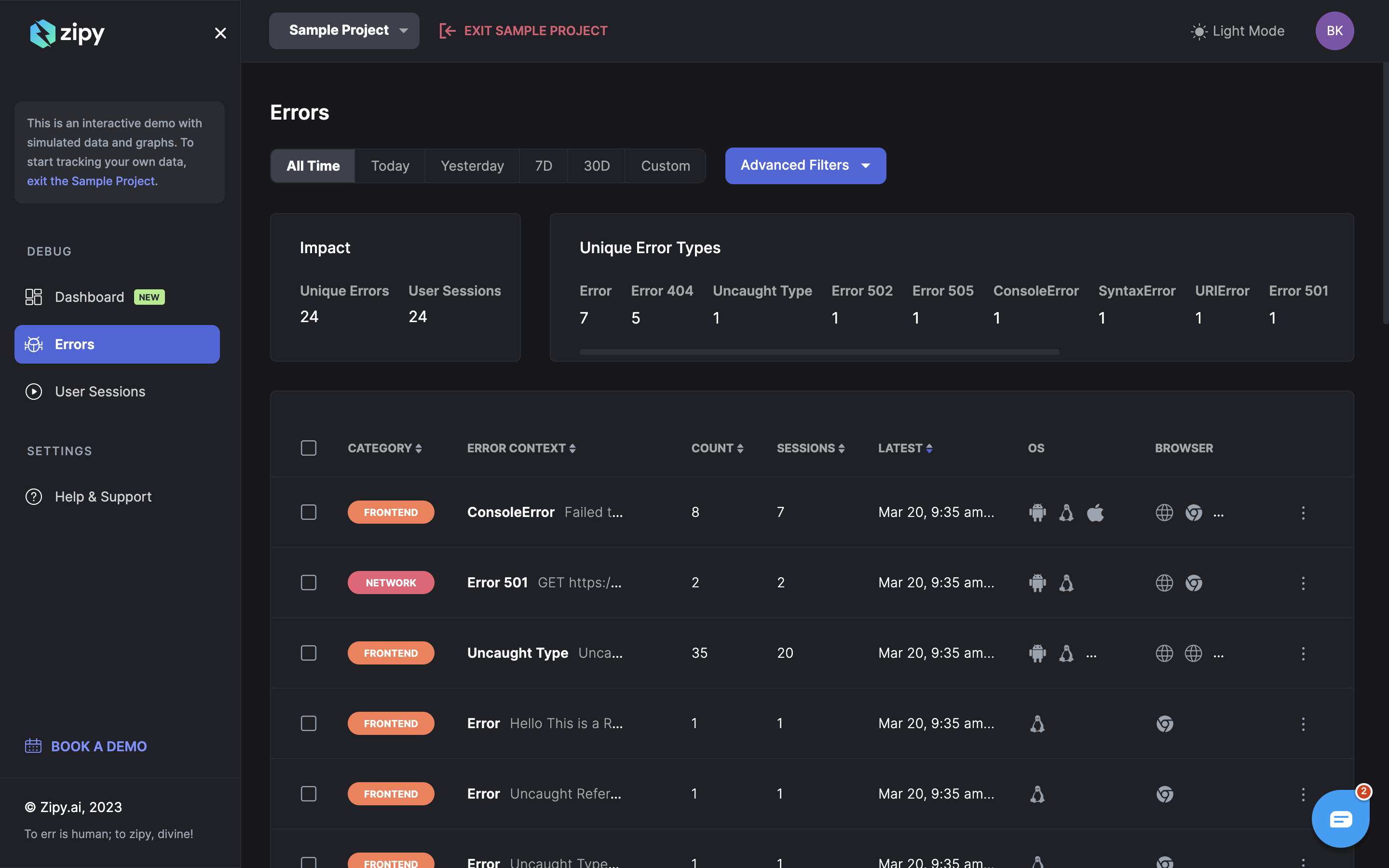


.png?alt=media&token=a314aabd-9295-4877-8202-738f17d0775c)
.webp?alt=media&token=3b6e9061-a7e3-44f4-97a2-2f3443a229a0)
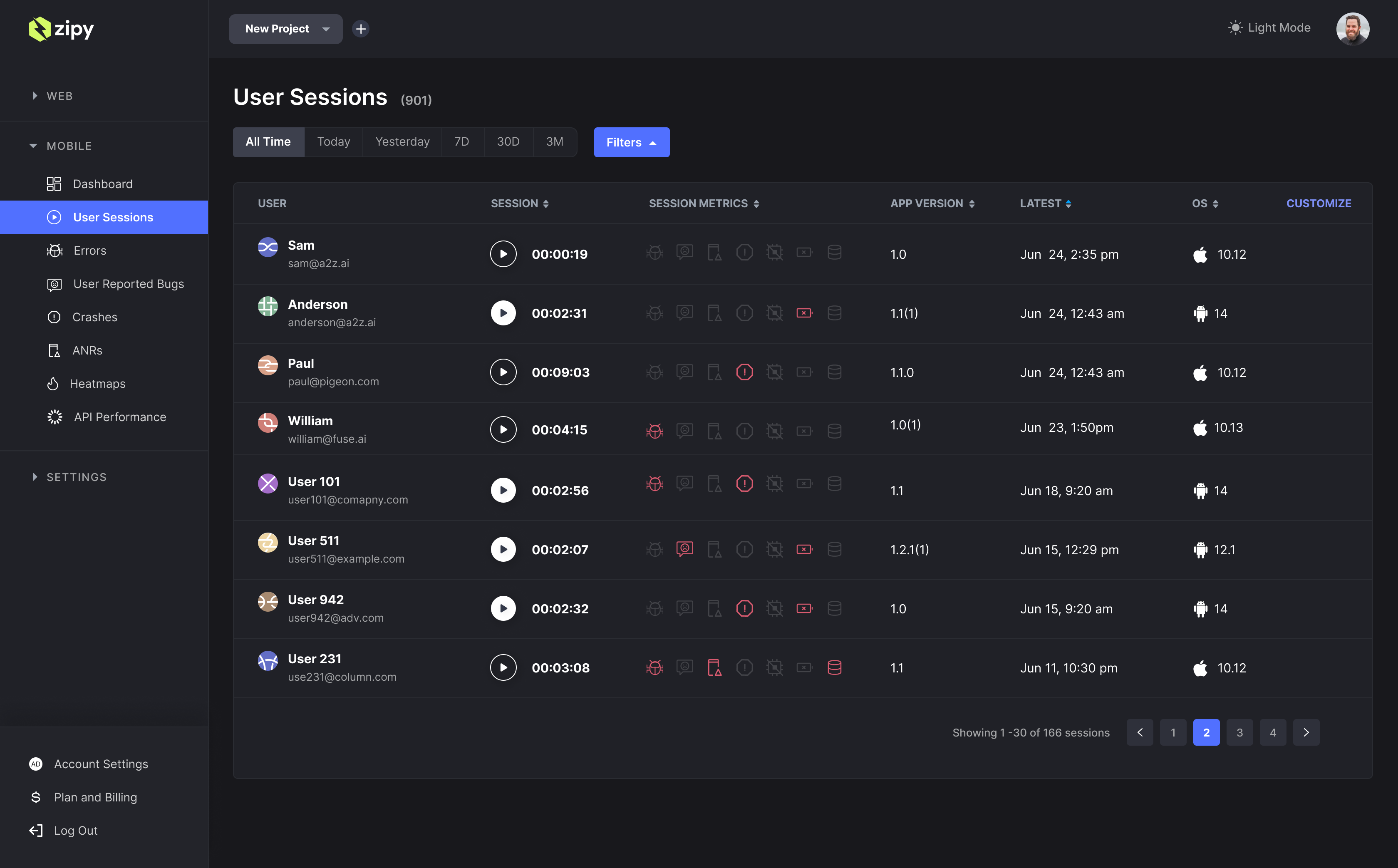
.png?alt=media&token=915ac4cb-7148-497b-a7af-3626686d8651)